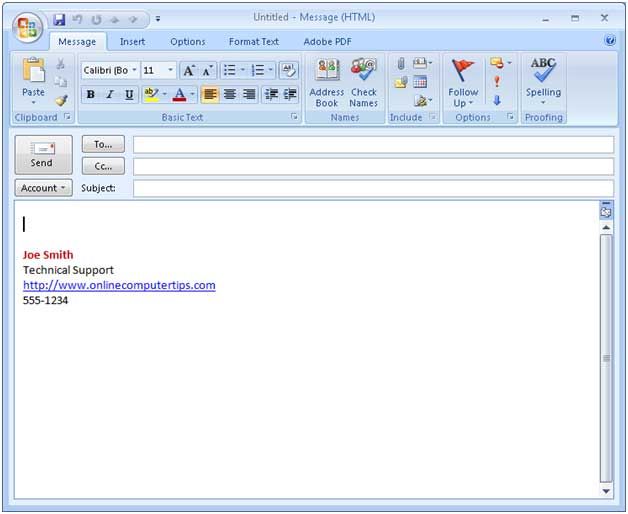
Outlook email signatures are text and or images that are placed in the body of an email message commonly used for things such as showing a person’s name, title, address, phone number and so on within the email Rather than having to type this information each time. By using a signature you can have Outlook insert this information into your email automatically.
Using email signatures also helps create consistency and professionalism across everyday communication, especially in work environments where first impressions matter even in short messages. A well‑designed signature can quietly reinforce branding, provide clear contact details without extra effort, and reduce the chances of important information being overlooked or mistyped. Over time, signatures become part of a person’s digital identity, allowing recipients to quickly recognize who the message is from and how to respond or follow up. They can also be updated as roles, phone numbers, or company details change, ensuring that outgoing messages always reflect current information without requiring manual edits. This automation not only saves time but also brings a level of polish and reliability to email communication that would be difficult to maintain by typing the same details repeatedly.
Different signatures can be used for new messages, replies or forwards and also for different email accounts if you have more than one configured in Outlook. Signatures can contain plain text, HTML, images, links and business cards. These signatures are customizable and you can apply themes as well as different fonts to them.
To add a signature to Outlook, click on the Tools menu, then Options and then the Mail Format button. Finally click on the Signature button. For Outlook 2010 go to the File tab, then click on Options, Mail and then the Signatures button. For Office 2013 and up compose a new email and then go to the Signature icon to get to the signature settings.
The first thing you want to do is make sure you are setting up the signature for the right email account from the drop down list on the right. If you only have one email account in Outlook then you don’t need to worry about this part.
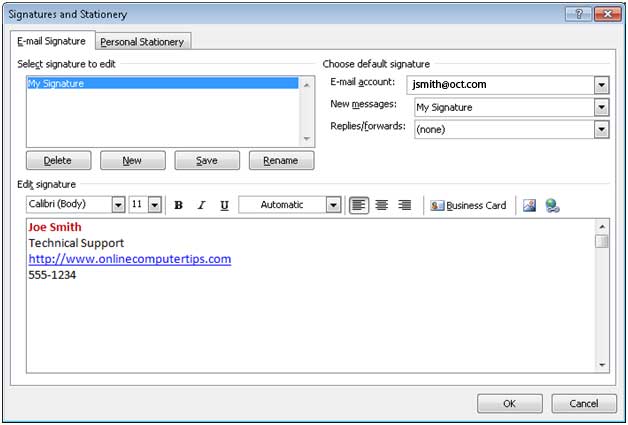
Click on the New button and type a name for your signature. This is in case you have more than one that you want to use and makes it easy to choose between them. Now you can choose if you want to use the signature for new messages, replies/forwards or both. After you name your signature you can type in what you want it to say and then format it to your liking. You can also add a picture or link etc. to customize it further. When you are finished click on Ok and it will be inserted next time you click on New Message.