Just like any other item in your home or office, your computer needs regular cleaning to stay in top shape. Over time, dust, dirt, smoke, and even pet hair can accumulate inside and outside your PC. Surprisingly, the inside of your computer often gets dirtier than the outside, which can lead to overheating and performance issues. Monitors collect dust and fingerprints, while keyboards gather crumbs and grime from daily use. A clean computer not only looks better but also runs more efficiently.
In this guide, you’ll learn how to clean your computer safely, including the monitor, keyboard, mouse, and internal components, without causing damage.
Why Cleaning Your Computer Matters
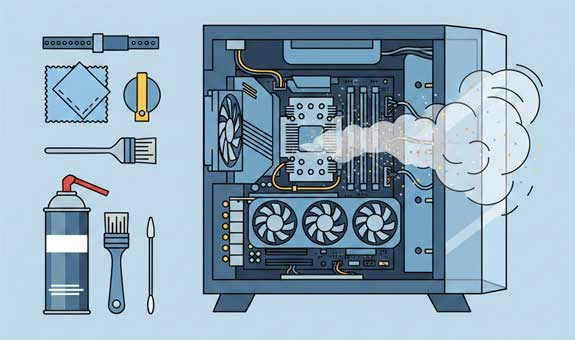
Dust buildup inside your computer can block airflow, causing components to overheat. This can shorten the lifespan of your hardware and even lead to system crashes. Regular cleaning prevents these issues and keeps your PC running smoothly.
Essential Cleaning Supplies
Before you start, gather the right tools. Avoid harsh chemicals or household cleaners like 409—they can damage sensitive electronics. Instead, use:
- Microfiber cloths for screens and surfaces
- Compressed air cans for internal components
- Cotton swabs for small areas
- Rubbing alcohol (isopropyl) for safe cleaning
- Specialized monitor wipes for screens
Step 1: Cleaning the Monitor
Your monitor is the most visible part of your setup, so keep it spotless:
- For CRT monitors: Use a glass cleaner like Windex, but never spray directly on the screen. Spray onto a cloth or paper towel, then wipe gently.
- For LCD or LED monitors: Avoid ammonia-based cleaners. Instead, use water or a mix of water and rubbing alcohol. A slightly damp microfiber cloth works best.
- Plastic casing: You can use a mild household cleaner, but again, spray it on the cloth—not the monitor.
Step 2: Cleaning the Keyboard and Mouse
Keyboards and mice are magnets for dirt and germs. Here’s how to clean them:
- Keyboard:
- Use compressed air to blow out debris between keys.
- Wipe the tops of keys with a damp cloth.
- If necessary, remove keys carefully for deep cleaning.
- Never submerge the keyboard in water or spray cleaner directly on it.
- Mouse:
- Wipe the exterior with a damp cloth.
- For older mice with a ball, remove the ball and clean the rollers inside using a cotton swab and rubbing alcohol.
- Ensure your mouse pad is clean to prevent recontamination.
Step 3: Cleaning the Computer Case
The outside of your PC case collects dust too:
- Wipe with a dry or slightly damp cloth.
- Use compressed air to clean vents and crevices.
- A vacuum attachment can help remove dust from vents—but never use a vacuum inside the case.
Step 4: Cleaning Inside the Computer
This is the most critical—and delicate—part:
- Power down and unplug your computer.
- Remove the side panel to access internal components.
- Take the computer outside if it’s very dusty.
- Use compressed air to blow dust off components, fans, and power supply.
Important: Keep the can upright to avoid spraying liquid. If the can gets cold and stops spraying, let it warm up before continuing. - Never use liquid cleaners inside the case.
- While inside, check cables and connections to ensure nothing is loose.
How Often Should You Clean Your Computer?
For most users, cleaning every 3–6 months is ideal. If you have pets or smoke indoors, you may need to clean more frequently.
Final Tips for Safe Cleaning
- Always turn off and unplug your computer before cleaning.
- Avoid static electricity, consider using an anti-static wrist strap.
- Handle components gently to prevent damage.
Keeping your computer clean improves performance, extends its lifespan, and creates a healthier workspace. With these simple steps, you can maintain your PC like a pro.