File Explorer is the default file management tool that you use when working in Microsoft Windows. Plus, File Explorer has not really changed too much throughout the years. For most people, File Explorer works just fine while other people prefer third party file manager apps such as Double Commander or muCommander.
One thing that people don’t like is the lack of customization options for File Explorer which would make working with files and folders more efficient. Sure, we have the Quick Access section that we can use to pin commonly used folders to but what if you want to pin a non-standard folder there like This PC? This PC is a special system location (a virtual container) so it doesn’t work the same as a typical Windows folder but there is a way to pin This PC to the Quick Access section so you can have it at the top of File Explorer.

As you can see in the image below, This PC is located at the bottom of the navigation pane on the left side of File Explorer and can’t be moved from that location. At the top of the navigation pane, we have the Home and Gallery sections. Any by the way, it is possible to remove the Home section from File Explorer as well as remove the Gallery section if needed.
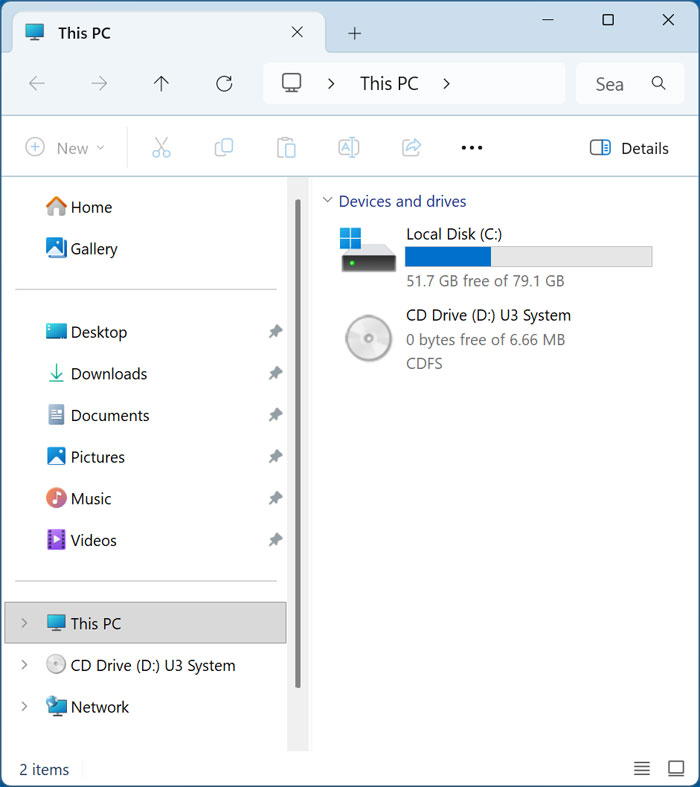
To add This PC to the top of File Explorer, we will be making a new This PC folder that we can then pin to the Quick Access section and then move up as needed.
To do so, we will choose a location on our computer where we want to permanently keep this new folder. Then we will right click in a blank area and choose New > Folder. For the name of the new folder, we will use the exact text as shown below. You can just copy and paste it rather than trying to type it manually.
This PC.{20D04FE0-3AEA-1069-A2D8-08002B30309D}
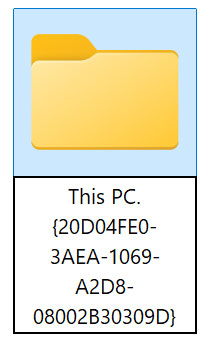
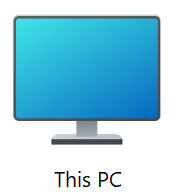
Once we add the text and press Enter, the icon will change to a This PC icon like you would normally see in File Explorer. And if you were to double click this folder, it would act the same was as if you were to do the same from the actual This PC folder in the File Explorer navigation pane.
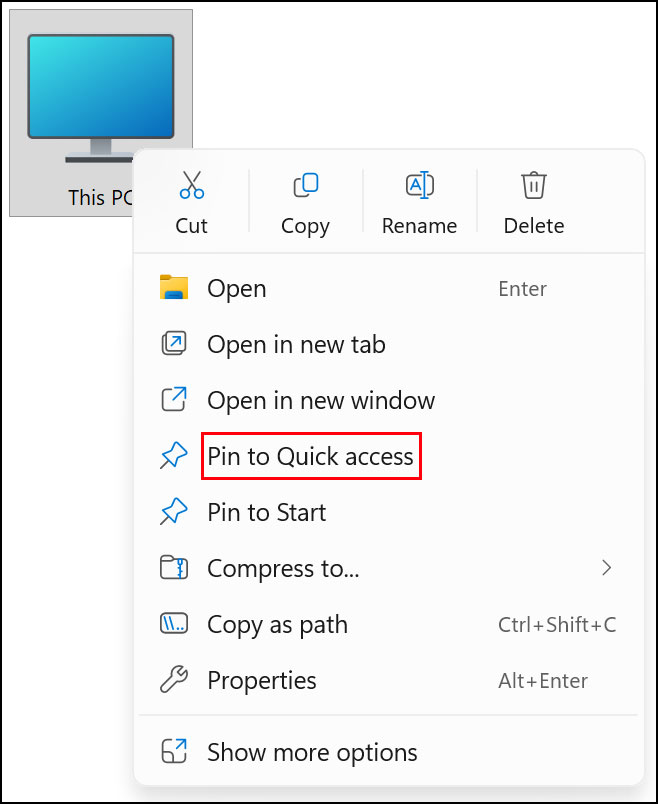
Now we can right click on this new “folder” and choose Pin to Quick Access like you would for any other folder you wanted to have pinned there.
Once this new folder is pinned to the Quick Access section, it can then be dragged to the top of the list of pinned folders to get it as close as you can to the top of File Explorer. If you performed the process to remove Home and Gallery (assuming you don’t use them), then it would be at the very top of File Explorer itself.
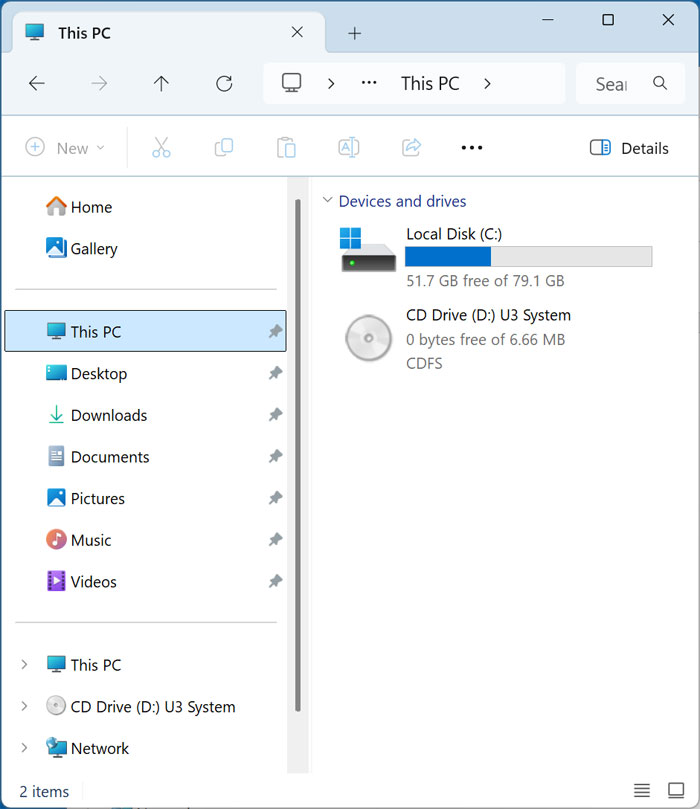
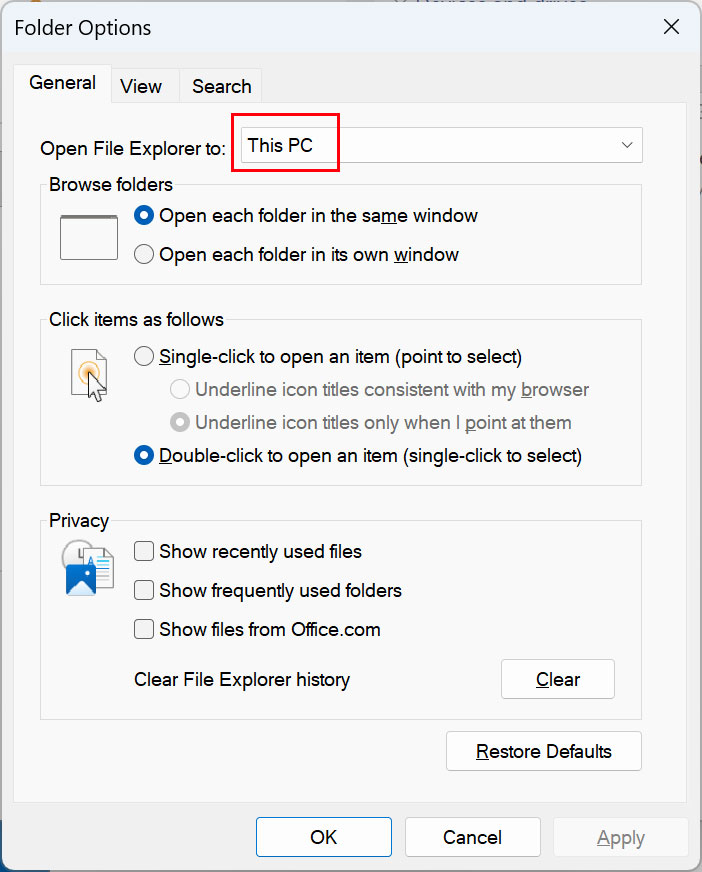
One thing you will notice is now you have two This PC folders in the navigation pane of File Explorer and both of them will work exactly the same. And if you didn’t know, you can also set File Explorer to open to This PC if it is opening to Home by default by going to the File Explorer options and setting the Open File Explorer to option on the General tab to This PC if it’s set to Home.
If you want to customize File Explorer even further, then check out our File Explorer customization and tweaking videos here.
For additional training resources, check out our online IT training courses.
Check out our extensive IT book series.