Customizing Windows is one of the first things people do when they get a new computer or reinstall Windows. And one of the more common things to do is to set a custom background photo for your desktop. And when doing so, you can use one of the built in Windows images or one of your own.
There is also an option to set a background photo slideshow so that you can have it cycle through multiple photos on a set interval, so your background always changes. The problem with this is that you can only choose one folder to have it pull these images from. If you have any subfolders then the photos in those folders will not be used. In this article, we will be showing you how to make the Windows background photos slideshow use images in subfolders.

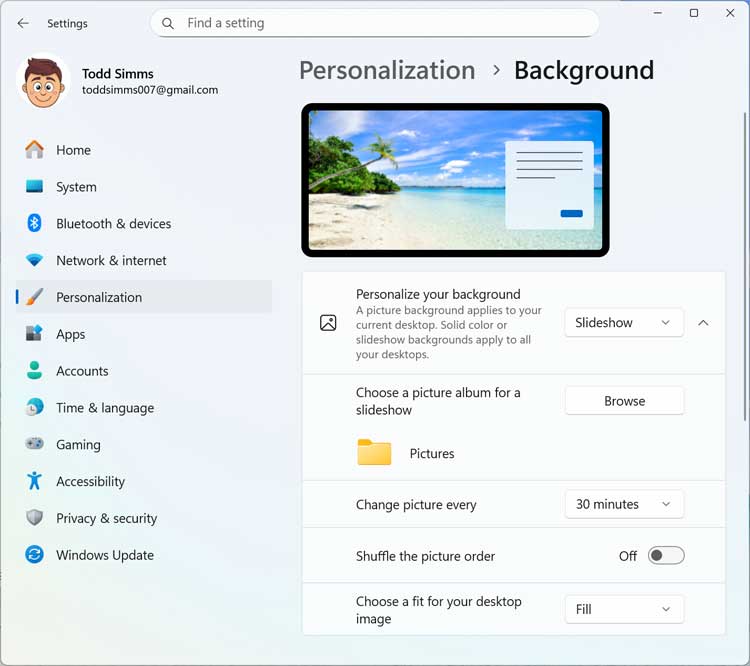
To configure the background photos slideshow, you can go to the Windows settings and then to Personalization > Background. Then in the Personalize your background section you can choose Slideshow from the dropdown. Next, you can click on the Browse button to select the folder from your Pictures folder that has the images you want to use for the slideshow.
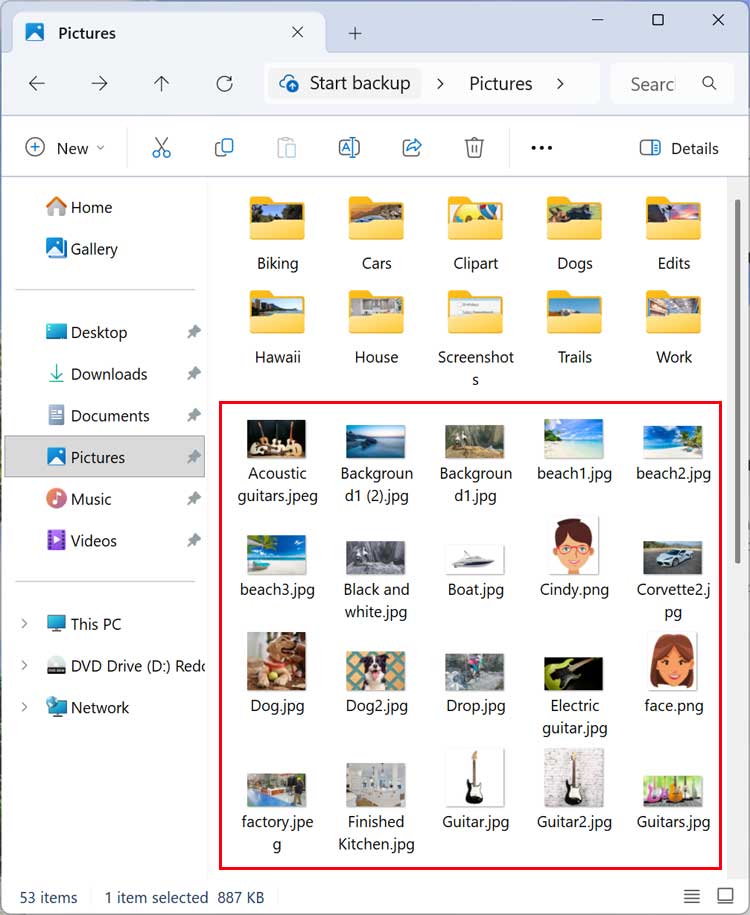
But like we mentioned earlier, it will only use the images in that folder and not the subfolders. So in our case, it will only use the folders that are shown with the box around them in the image below.
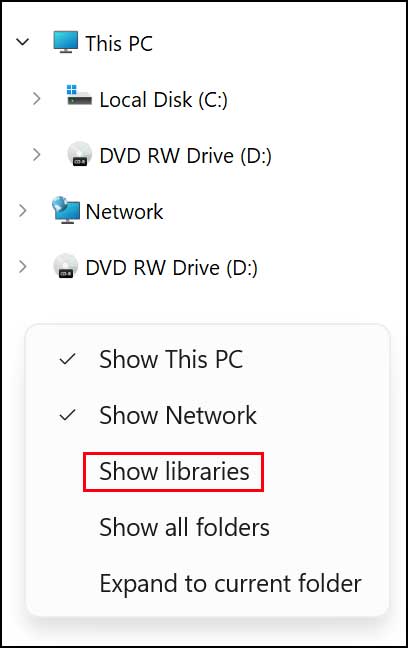
To get around this and allow subfolders to be used for the background photos slideshow, we will first need to enable the Libraries in File Explorer. To do this, simply right click on a blank area on the left side of File Explorer and choose Show libraries.
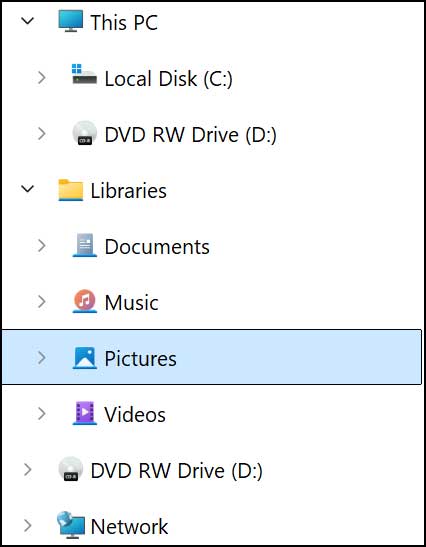
You will then see your Windows libraries along with the Pictures library.
Next, we will need to open a Run dialog box by typing run in the Windows taskbar search box. Then you can copy the text below and paste it in the Run box and click the OK button.
shell:::{ED834ED6-4B5A-4bfe-8F11-A626DCB6A921} -Microsoft.Personalization\pageWallpaper
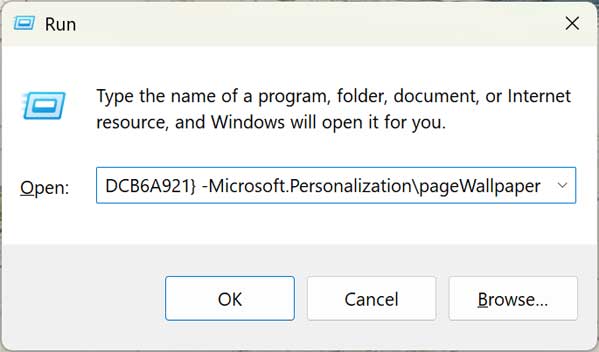
This will then open the classic desktop background configuration tool and allow you to choose which photos will be used for your background slideshow. It will select all the images within the subfolders contained in the Pictures folder.
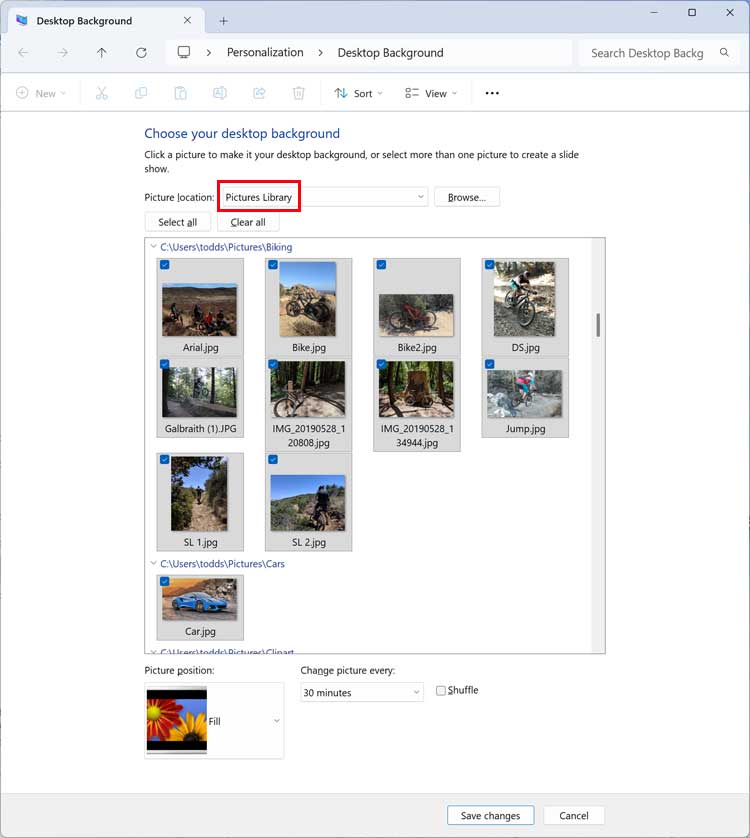
Now you can either use all the photos in the subfolders or deselect any photos you do not want to use for your background photo slideshow.
If you find that you cannot remove your Windows desktop background photo history, then check out this article.
For additional training resources, check out our online IT training courses.
Check out our extensive IT book series.