Formatting a USB drive should be a simple task, but Windows 11 adds an unexpected twist when it comes to the FAT32 file system. If you plug in a 64GB, 128GB, or larger flash drive, you will notice that FAT32 is missing from the list of available file system choices when you right click the flash drive and choose Format. Windows will allow NTFS and exFAT, but not FAT32. This limitation surprises many users because FAT32 is still widely required by game consoles, smart TVs, legacy operating systems, certain bootable tools, and devices that simply refuse to recognize anything else. So why does Windows 11 block FAT32 formatting for larger drives even though the FAT32 file system itself supports volumes up to two terabytes? In this article, we will be discussing how to format a large capacity USB flash drive as FAT32 in Windows 11.

As you can see in the image below, we do not have an option for FAT32 but only exFAT which is the default and NTFS.
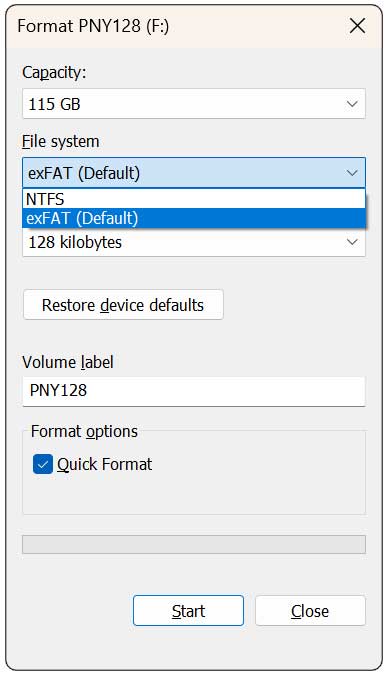
The restriction comes from Microsoft rather than the FAT32 specification. Windows artificially limits FAT32 formatting to 32GB volumes, even though FAT32 technically works far beyond that. Users have confirmed that FAT32 is fully functional on large drives and can be created using other tools or operating systems, but Windows will neither provide the option nor allow the format through its built-in utilities such as File Explorer or Disk Management.
The reasons for this limitation include pushing users toward more modern file systems like exFAT and NTFS, which support large files and journaling, and avoiding the common user frustration caused by FAT32’s four gigabyte maximum file size. Regardless of these motivations, the end result is a persistent barrier for anyone who still needs true FAT32 compatibility on a modern large USB drive.
Thankfully, you can bypass the Windows 11 restriction easily by using Rufus, a lightweight and trusted tool designed for working with USB media. Rufus is primarily known for creating bootable drives, but it also includes the ability to format large volumes as FAT32 even when Windows refuses to do so.
To use Rufus for FAT32 formatting, start by downloading the newest version from their website. You can choose to install Rufus on your computer or use the portable version that doesn’t require anything to be installed.
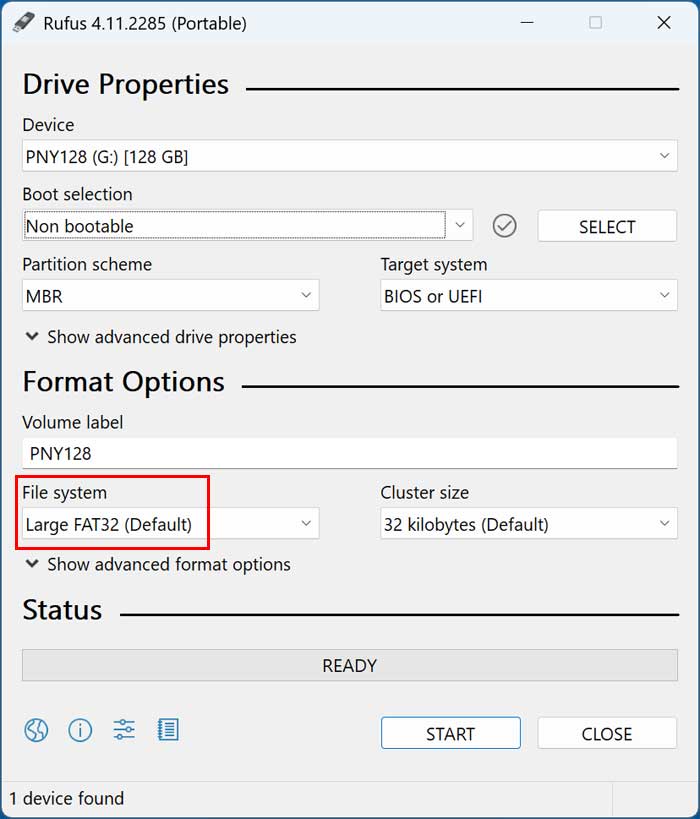
To format your USB flash drive as FAT32 with Rufus simply insert your flash drive into your computer and open Rufus. At the top of the window, select your USB device from the device list. Make sure to choose the correct one if you have more than one on your computer since all the data will be wiped. Make sure the choice under Boot selection is set to Not bootable. Under the file system dropdown, choose FAT32. Rufus will then prepare the drive using a proper FAT32 structure, regardless of its size. You can also change the name (label) of the flash drive before you format it.
Once you click Start, the tool will format the drive quickly and create a clean FAT32 volume ready for use on any compatible device. This method avoids the artificial 32GB limitation imposed by Windows and gives you a fully functional FAT32 drive without using command line utilities or slower PowerShell formatting methods.
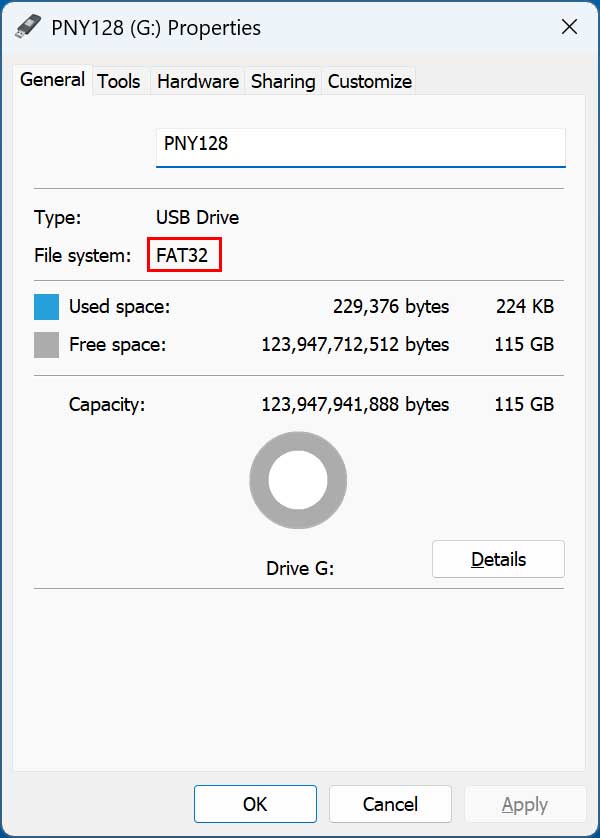
Once the formatting process is complete, we can now look at the properties of the flash drive and see that it is using the FAT32 file system. You can also change the name of the flash drive here if you forgot to do it in Rufus during the formatting process.
Using Rufus remains one of the most reliable ways to create large FAT32 drives, especially when dealing with devices that insist on FAT32 formatting. It is fast, safe, and completely free. With this approach, you can override Windows 11’s limitations and ensure that your flash drive works exactly where you need it, whether that is a legacy system, a console, a media device, or a bootable toolkit.
For additional training resources, check out our online IT training courses.
Check out our extensive IT book series.