Microsoft Word is the most popular word processing program in use today. It can be used at home, at the office, online at the Office website, and even on your smartphone. Even though it’s a very popular program, there are not a lot of people who can be called experts when it comes to using all the features it has available.
So, when people run into issues, they may have trouble trying to figure out how to fix them. One common issue arises when trying to add bulleted or numbered lists to your document. After you highlight the list and choose your option, you may find that only the first line in the list gets a bullet or number added to it. In this article, we will be showing you how to stop Word from bulleting or numbering only the first line in a list.

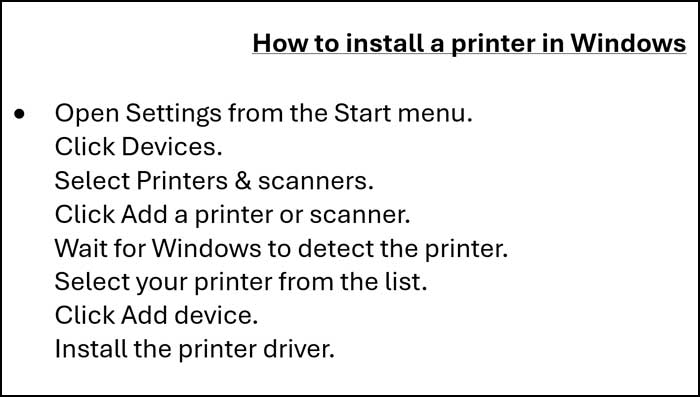
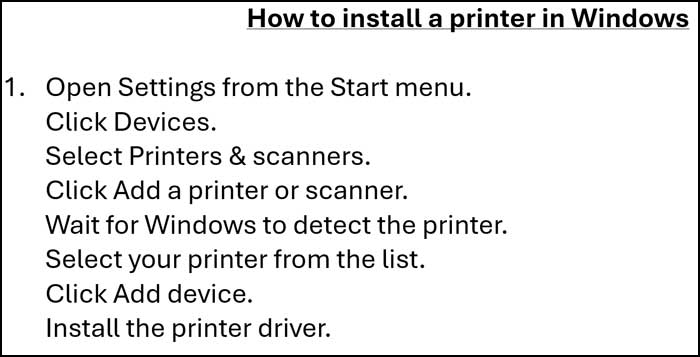
When you run into a situation where only the first line gets a bullet or number, it is usually caused by what are known as soft returns. A soft return in Word is a manual line break that moves text to a new line without starting a new paragraph. It’s created by pressing Shift + Enter instead of Enter and is often used to control line breaks while keeping the same paragraph formatting.
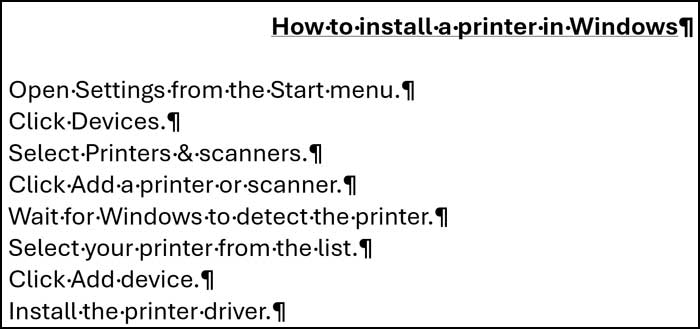
Another common reason for this to happen is if you copy and paste text from other sources such as a PDF file or a web page. The easiest way to see if your list has soft returns is to click on the show/hide paragraph marker button on the Home tab in the Paragraph group. If you see carriage return/arrow symbols after the lines in your list, this indicates a soft return.

To fix this, you can do several things. You can manually press Enter after each line to add hard returns to each line or you can manually delete each soft return arrow after each line.
The easiest way to fix this is to go to the Find and Replace tool on the Home tab under Editing and type in ^l (Shift + 6 and lower case L) in the Find what box and then ^p in the Replace with box and then click on the Replace All button.

Word will then tell you how many times it has made the replacement.

Now if you go back to the show/hide paragraph marker button, it should show all paragraph markers rather than soft return markers.
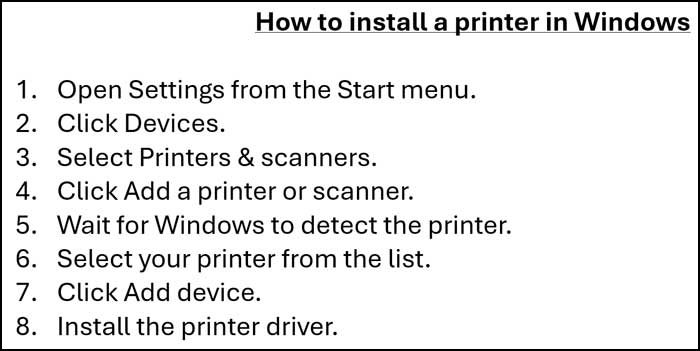
Now you can select the lines in your list and add bullets or numbers as needed.
For additional training resources, check out our online IT training courses.
Check out our extensive IT book series.