
When it comes to repairing and recovering Windows systems, you have several options. You can try to use the built in Windows recovery tools which are average at best. Or you can use a third party USB recovery toolkit such as Medicat or NHV BOOT which offers a large variety of free tools that you can use all from one USB drive.
Since these repair toolkits have so many apps and tools in one place, you may want to check out more than one to see which one has the tools that will work best for you. In this article, we will be showing you the Bob Omb Modified Win10PEx64 USB toolkit. The Bob Omb toolkit is an older tool but still works great for modern systems running Windows 11. It can also be used on older systems that use MBR drives or do not require secure boot.

To use the Bob Omb Modified Win10PEx64 USB toolkit, you will first need to download it and create a bootable flash drive from the ISO file. Since there is not an official website for this toolkit, you will need to find a reputable site to download it from such as archive.org or filecr.com.
If you download the zip file version, you will have several files once you extract it. For most people, you will want to use the first option for UEFI and SecureBoot if you are running Windows 11.
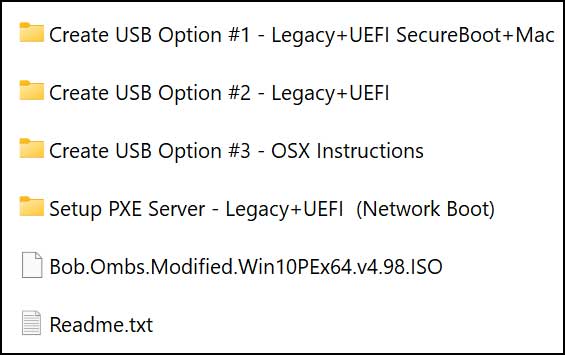
You can open the Readme.txt file to get more information about the tool. You will also find information here that tells you what you need to do if you plan on using this toolkit to reinstall Windows since you will need to add the Windows ISO file to your flash drive in a specific folder.
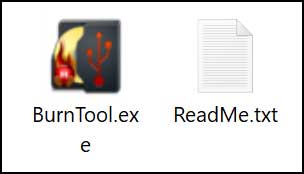
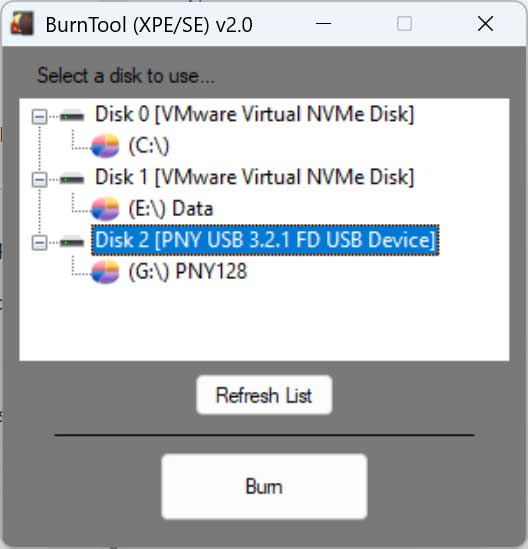
If you download the version that comes with BurnTool.exe in the Option #1 folder, you can use the Burn Tool to create your USB flash drive by dragging the Bob Omb ISO file onto the BurnTool.exe file itself to start the installation.
Just be sure to choose the right disk when using the Burn Tool since all the data on that drive will be wiped.
Now you can boot your PC with the Bob Omb USB flash drive as needed to repair and recover your Windows installation. There are many other tools included with this toolkit as you will see when you boot your computer with it.
The Bob Omb toolkit will have a Windows 10 style desktop with a start menu and taskbar.
You can click the start button and then go to All Programs and find all the tools broken down into specific categories.
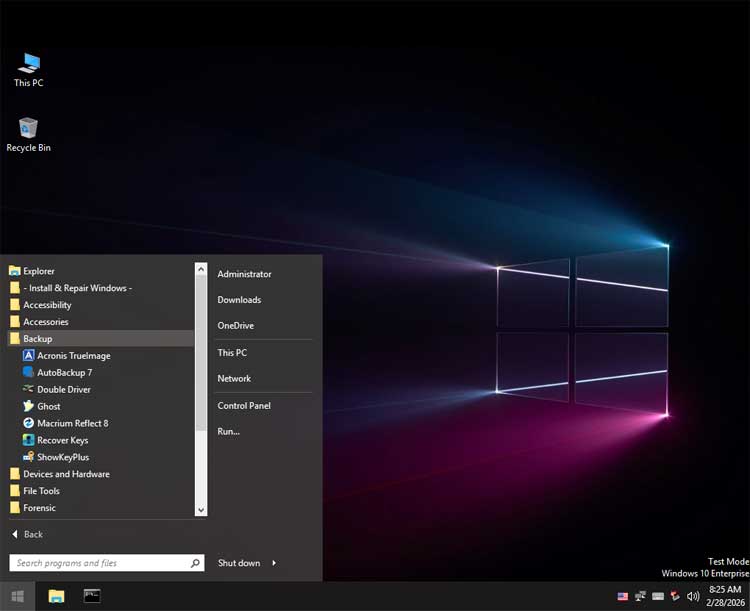
Here are the main capabilities of the Bob Omb toolkit. There are several applications or tools within each category.
Data Protection & Recovery
- Full system, disk, and partition backup & restore
- Automated system backups
- Lost data recovery for PC, macOS, and Linux drives
- Decryption of password‑protected files
- Ransomware‑encrypted file recovery
- Secure file shredding (irreversible deletion)
Disk & Storage Management
- Disk and partition conversion utilities
- MBR (Legacy/CSM) to GPT (UEFI/Secure Boot) migration
- Convert physical disks to VHD images
- Hard drive diagnostics and health testing
- Disk defragmentation and optimization
- ReFS (v3.3) formatting with full read/write support
- Certified data destruction for storage devices
System Repair & Maintenance
- Malware, virus, and threat removal
- Windows installation (any version)
- System registry repair and cleanup tools
- Syskey removal and system lock recovery
- Driver backup and restoration
Security & Access Services
- Password reset and account unlocking
- Microsoft account to local account conversion
- Login password bypass and restoration
- Product key recovery with printable reports
Networking & Remote Access
- Wi‑Fi network discovery and scanning
- Telnet, SSH, and FTP connectivity tools
- Secure remote access to systems or drives from anywhere
Advanced & Developer Utilities
- Executable (EXE) and DLL debugging
- Duplicate file detection and removal
Backup, Imaging & System Restore
- Full disk, partition, and system image backup & restore
- Automated backup scheduling utilities
- Physical disk to virtual disk (VHD) conversion
- Disk cloning and sector‑by‑sector imaging
- Driver backup and restoration
- Windows DISM‑based repair and recovery tools
Disk, Partition & File System Management
- Disk and partition creation, resizing, and conversion
- MBR (Legacy/CSM) to GPT (UEFI/Secure Boot) migration
- ReFS v3.3 formatting with full read/write support
- Disk defragmentation and performance optimization
- Disk health monitoring and SMART analysis
- Raw disk access and low‑level disk utilities
Data Recovery & File Repair
- Deleted and lost data recovery for Windows, macOS, and Linux drives
- Partition recovery and file system reconstruction
- Ransomware‑encrypted file recovery and decryptors
- Password‑protected file and archive decryption
- File hash verification (MD5 / CRC) for integrity checks
Security, Privacy & Data Destruction
- Certified disk wiping and secure data destruction
- Military‑grade file shredding (irreversible deletion)
- Malware, virus, and rootkit detection & removal
- Offline antivirus and threat scanning tools
- File attribute, timestamp, and metadata manipulation
Password, Account & Access Recovery
- Windows password reset and account unlocking
- Microsoft account recovery and conversion to local accounts
- Syskey removal and legacy lock bypass
- Login password bypass and restoration
- Product key recovery with printable reports
Operating System Deployment & Repair
- Installation of any Windows version (XP through Windows 11)
- Boot configuration repair and BCD editing
- Offline registry editing and repair
- Driver injection and forced hardware installation
- Preloaded driver support for modern Apple hardware (Mac‑compatible)
Hardware Diagnostics & Stress Testing
- Full hardware diagnostics and burn‑in testing
- CPU, RAM, GPU, and storage benchmarking
- Temperature, voltage, and sensor monitoring
- RAID and advanced storage controller support
Networking, Connectivity & Remote Access
- Wi‑Fi network scanning and signal analysis
- Advanced IP and device discovery tools
- Telnet, SSH, and FTP client utilities
- Secure remote desktop and unattended access
- Remote access to systems or mounted drives from anywhere
System Internals & Advanced Administration
- Registry analysis and system configuration tools
- Startup, service, and driver inspection
- Active Directory browsing and object analysis
- Command‑line, PowerShell, and Sysinternals utilities
- File system and disk activity monitoring
Developer, Forensic & Advanced Tools
- EXE and DLL debugging and inspection utilities
- Hex editors and low‑level binary analysis
- File comparison and duplicate file detection
- Disk and memory inspection tools
- Change file attributes, permissions, and timestamps
Bootable Environment & Platform Capabilities
- Fully portable Windows 10 PE environment
- Integrated Java Runtime (10.0.1)
- DirectX 12 support
- Full .NET Framework stack (2.0 through 4.7.2)
- PowerShell 5.1 support
- Works on PCs, servers, and modern Macs
When it comes to using these types of USB toolkits, it’s best to try out several different ones to find which one works the best for you. You can also use a tool such as Ventoy to create a flash drive that contains multiple toolkits that can be launched independently.
For additional training resources, check out our online IT training courses.
Check out our extensive IT book series.

