
Last Updated on March 16, 2026
Be proactive and make a Windows password reset disk BEFORE forgetting your password
With so many usernames and passwords to remember these days, it is incredibly common for people to forget their login credentials. People tend to panic and furiously try to figure out a way to remember it or search for hidden sticky notes. Fortunately, there are reliable ways to reset your password and it is extremely easy for standard websites such as your bank or email account.
Forgetting your local Windows user account password presents a much bigger problem. There is absolutely no quick link that says forgot password to magically send you an email with easy reset instructions. If you do not have any other user accounts on the computer with active admin rights, you are entirely locked out. You usually need to resort to buying an expensive password reset boot disk to get your machine running again.

You should proactively think about making a Windows password reset disk to avoid getting into this stressful situation entirely. When that horrible lockout day finally comes, you will be able to get right back into your computer with zero hassle and absolutely no money spent. Making a password reset disk is incredibly easy to do. All you actually need is a standard USB flash drive to secure your account.
Creating Your Password Reset Disk
1. Open the User Accounts Menu
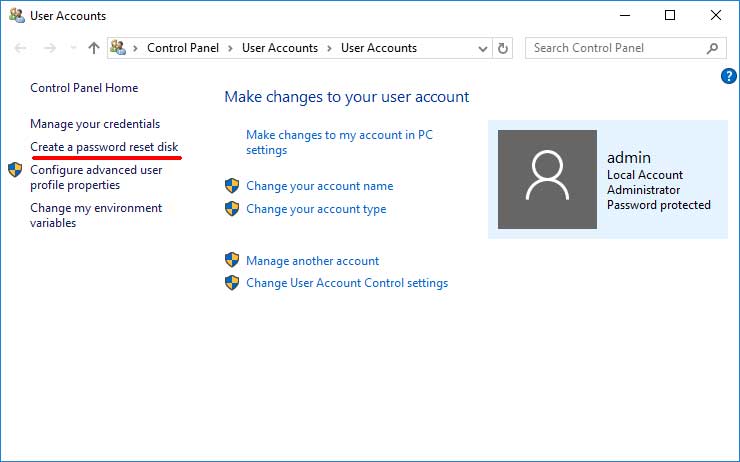
Once you physically insert the flash drive directly into your computer, you need to open the legacy control panel. Simply go straight to the Control Panel and then click on the User Accounts category. Click the specific text link on the left side that explicitly says Create a password reset disk.
2. Launch the Forgotten Password Wizard
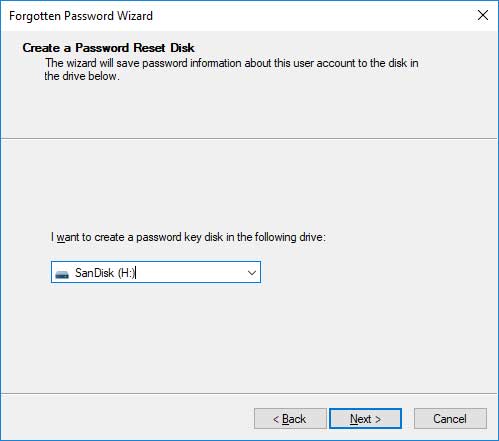
This action will instantly start the official Forgotten Password Wizard directly on your desktop screen. Once this prompt comes up, simply click on the Next button to continue the setup process. You will then need to explicitly select your inserted USB flash drive from the dropdown list where it says I want to create a password key in the following drive.
3. Verify Your Current Password
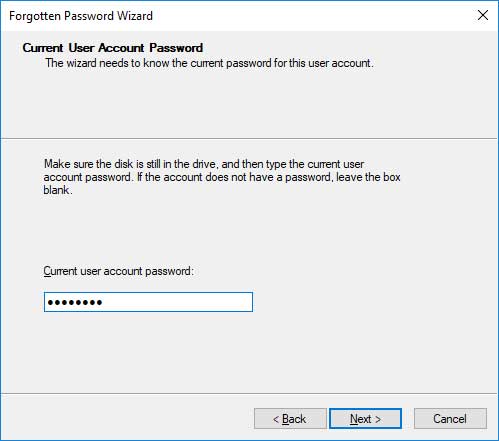
If you only have one single flash drive inserted, that is absolutely all that will be displayed in the menu. Next you will be aggressively asked for the current user account password. You obviously need to do this exact process long before you actually forget your password.
4. Store the Drive Safely
This strict security requirement means you must run this wizard while actively logged in as the exact user you would be recovering the password for. It absolutely will not work if you try to use a completely different user profile. The wizard will go through the rapid process of securely creating the password reset disk on your flash drive. Now you can take the flash drive out and physically store it somewhere incredibly safe.
Using the Password Reset Disk
1. Trigger the Reset Prompt
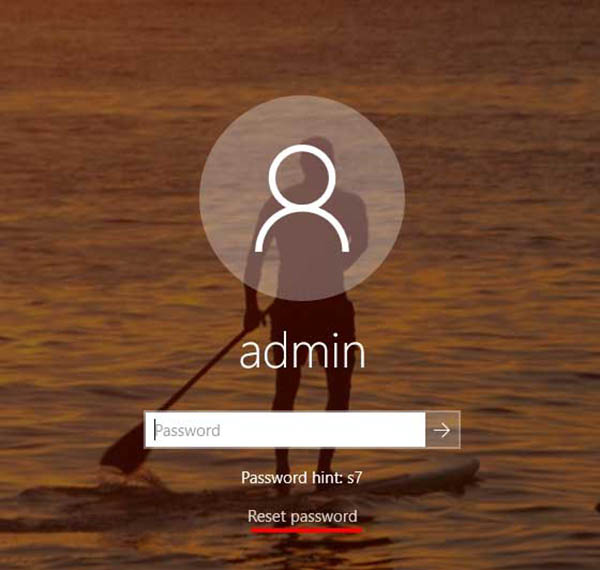
When it comes time to actually use your password reset disk, simply plug it into an available USB port. You must deliberately enter your password incorrectly on the main Windows login screen. You will instantly be prompted with a choice to reset your password. You should click directly on that specific text link.
2. Start the Recovery Wizard
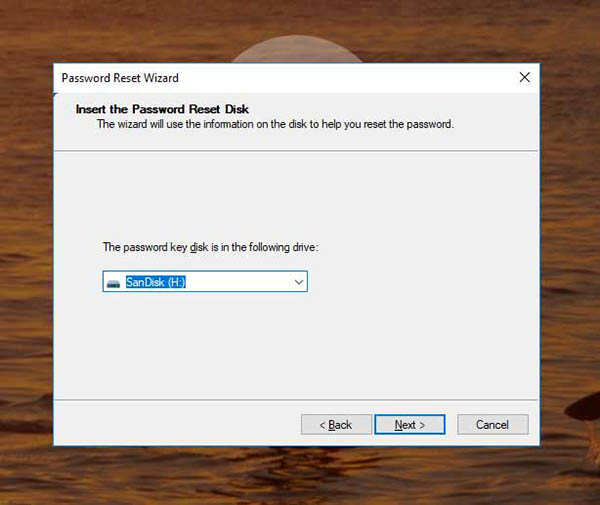
This action will successfully start the Password Reset Wizard right over your locked screen. You can click Next on the very first screen to move forward. The next screen requires you to accurately select the specific USB flash drive that was originally used to create the password reset disk.
3. Create a New Password
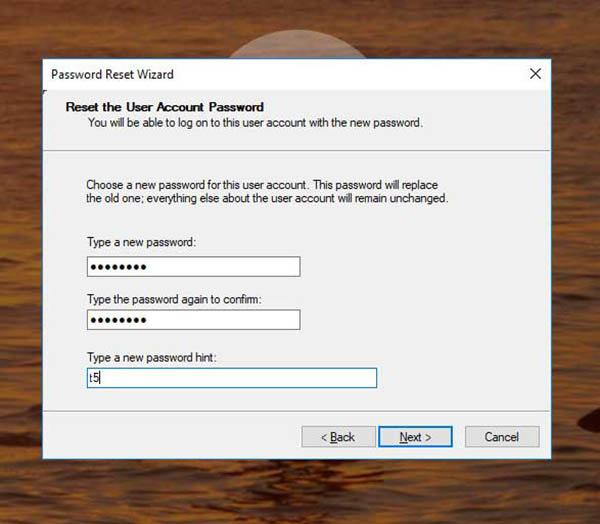
Next you will be explicitly asked to type in a brand new password. Type it in again to perfectly confirm the spelling and then type in a helpful new password hint. Make absolutely sure this is a phrase you will actually remember next time.
4. Finalize the Account Recovery
After that step is complete, click on Finish at the next screen and your local password will be officially reset. You can then type in your newly created password straight into Windows and log in normally. You should immediately go back to the create a password reset disk tool in Control Panel. Redo the entire creation process with your new password so you are protected when you inevitably forget it next time. It is perfectly fine to use the exact same flash drive to make the new reset disk.
For additional training resources, check out our online IT training courses.
Check out our extensive IT book series.






