Installing your own operating system is a fairly common practice these days. Whether you are installing Windows 11 or one of the many Linux distributions, the process is pretty much the same for any OS. What you need to do is download the ISO image for the OS you want to install and create a bootable USB flash drive.
If you want to create a bootable Linux flash drive from within Linux itself, you can do so using the free Fedora Media Writer. This tool can be used to download various versions of the Fedora operating system and then create a bootable flash drive all in one step. It can also be used to create bootable flash drives for other versions of Linux from an ISO file that you have downloaded onto your computer.

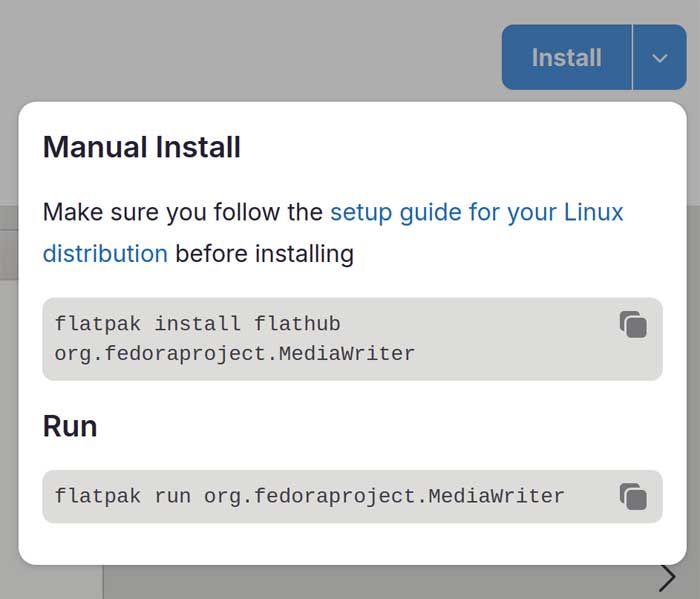
The first step in the process is to download and install the Fedora Media Writer which can be found here. When you get to the website, you will see an Install dropdown that has instructions for manually installing the tool. There is also a link you can click on that says Make sure you follow the setup guide for your Linux distribution before installing if you are using a specific version of Linux that cannot use the commands shown here.
For our example, we will be installing the Fedora Media Writer on Ubuntu Linux. First, we will need to install Flatpack using the sudo apt install flatpack command.
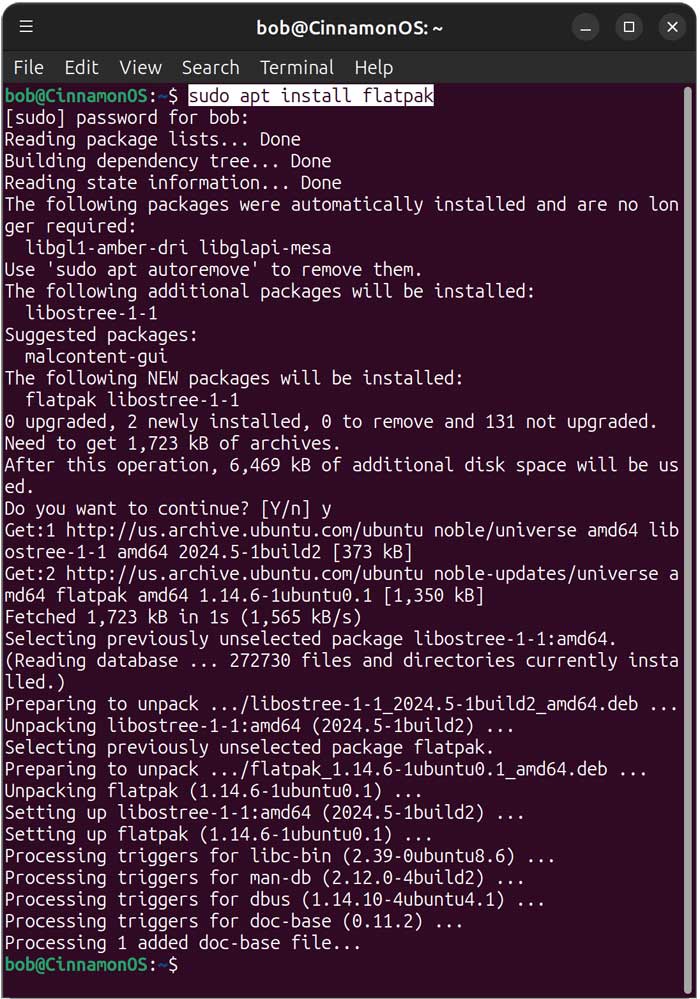
Then we will need to add the Flathub repository to our system‑wide Flatpak configuration using the following command.
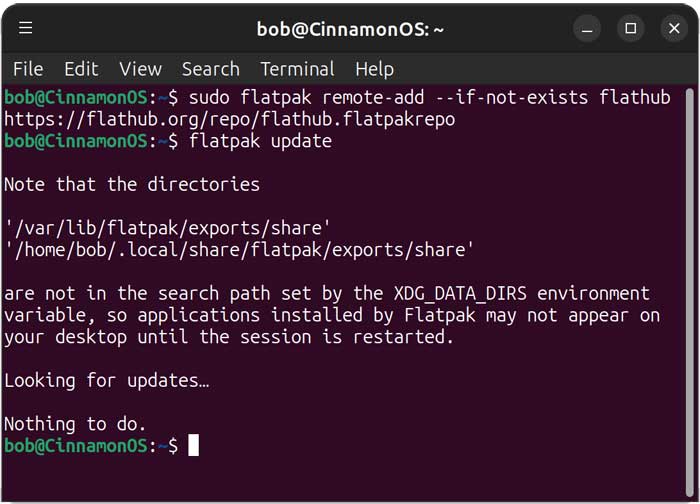
sudo flatpak remote-add –if-not-exists flathub https://flathub.org/repo/flathub.flatpakrepo
Next, we will check all of our installed Flatpak applications and runtimes and check for an install any updates using the flatpak update command.
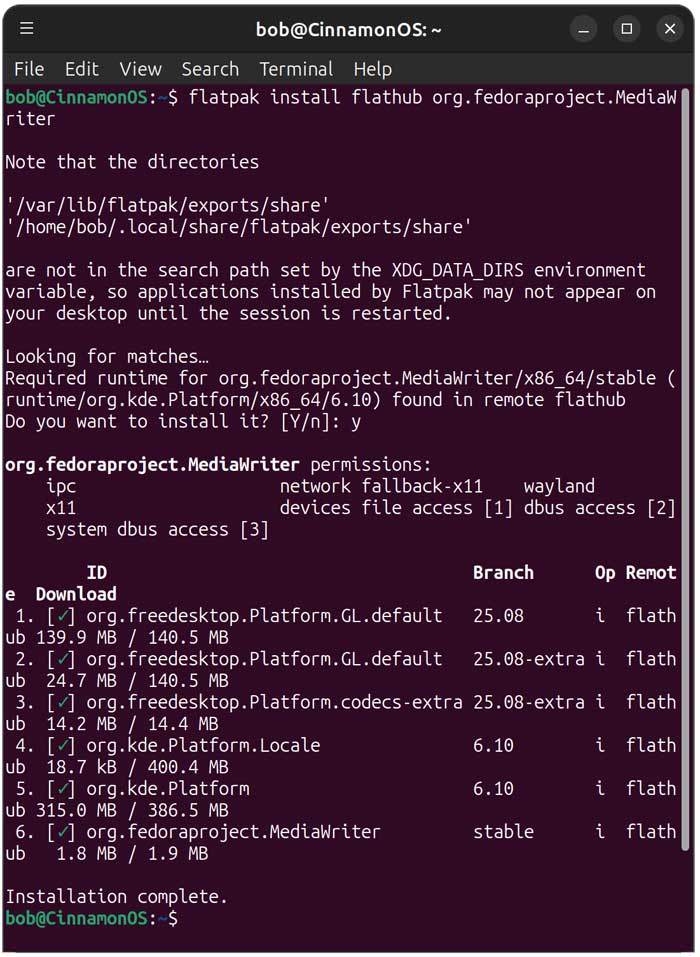
Now we can install Fedora Media Writer using this command.
flatpak install flathub org.fedoraproject.MediaWriter
Finally, we can run the Fedora Media Writer tool using
flatpak run org.fedoraproject.MediaWriter
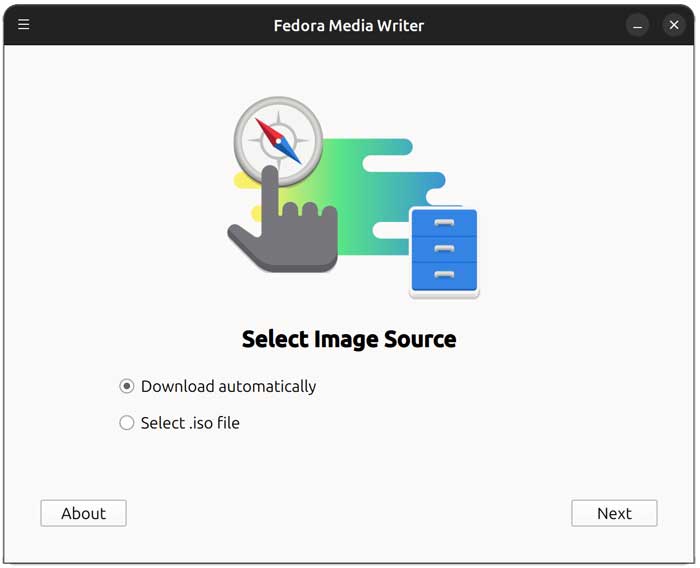
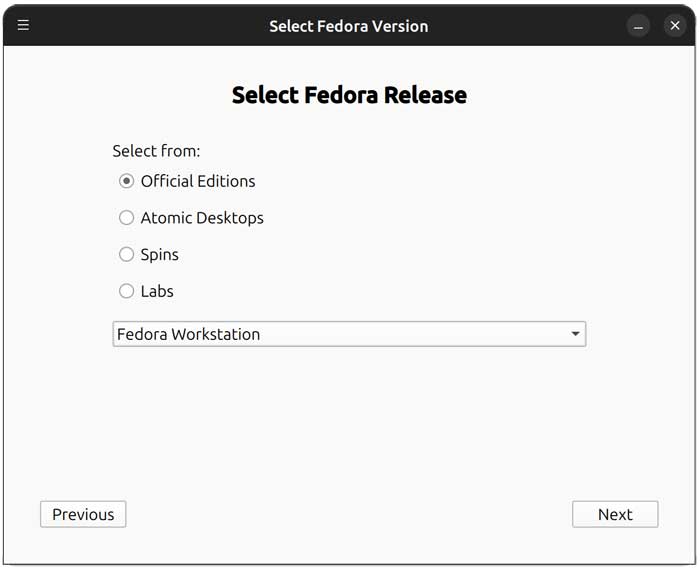
We will then have the option to choose a version of Fedora Linux to download and add to our flash drive, or we can browse to an ISO image file that we have already downloaded somewhere else. If you choose the Download automatically option, you will be limited to Fedora releases so if you have another distribution of Linux you wish to use, you will need to use the Select .iso file option. For our example, we will have the app download Fedora Workstation and configure our flash drive automatically.
As you can see, there are several editions of Fedora to choose from, and each one will have multiple options.
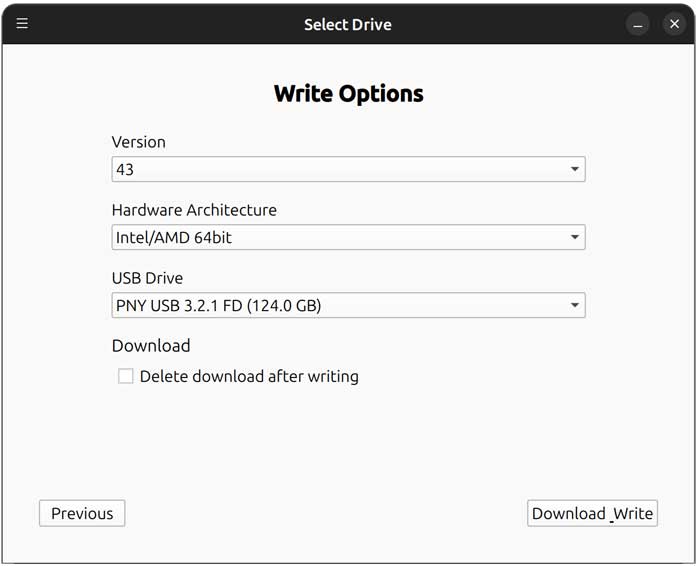
Since we have chosen Fedora Workstation, we can choose which version to configure, the hardware architecture we are using and then what flash drive to install it on. You can then have the tool delete the downloaded media file after the process is complete.
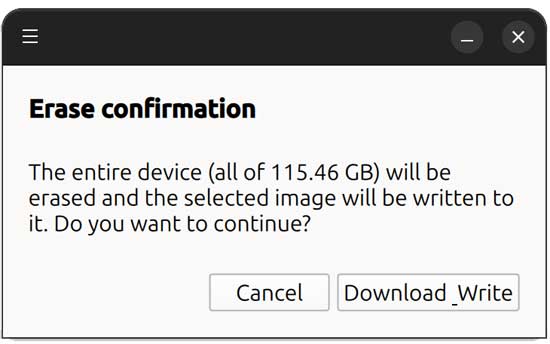
Once you click the Download/Write button, you will be warned that everything on your flash drive will be erased so be sure to back up anything you want to keep first.
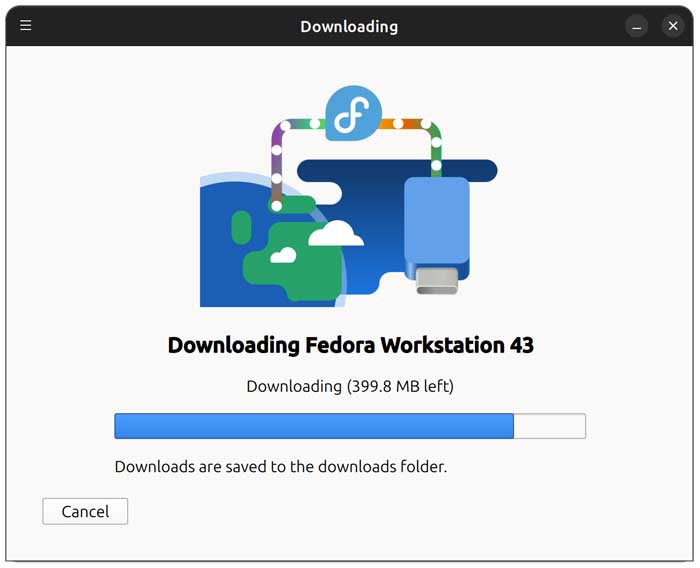
You will then need to enter your administrator password and then download and write process will begin.
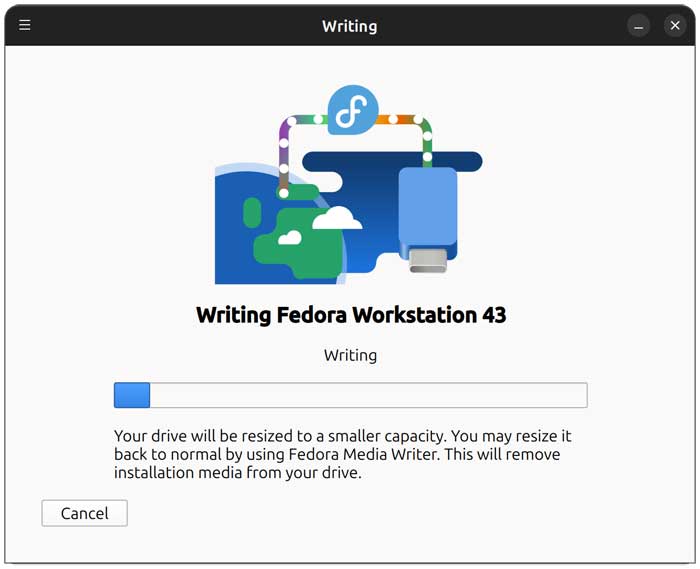
When the process is complete, you can view the contents of the flash drive to see how it was configured.
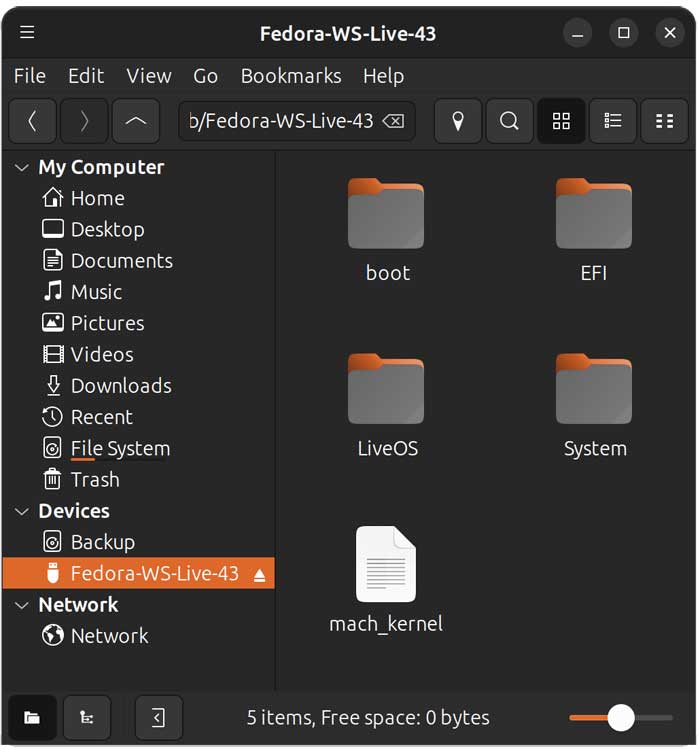
Now you can boot your computer with your newly created bootable flash drive and install Linux.
For additional training resources, check out our online IT training courses.
Check out our extensive IT book series.