Last Updated on July 22, 2026
There are many command line networking tools that you can use to do various things from checking the connectivity of hosts on a network to finding out IP information about your computer.
DNS (Domain Naming Service) is the service that is used to resolve or translate computer names on local networks and the Internet to their respective IP addresses. IP addresses are used to identify hosts or network interfaces on networks so computers and other devices can communicate with each other.
The nslookup command is an administrative tool for testing and troubleshooting DNS servers. It is installed with the TCPIP protocol suite and is available in Windows and other operating systems. Nslookup is used to query DNS servers to obtain domain name or IP address mappings for DNS records. For example if you would like to know the IP address of a computer on your network that you know the name of, you can use nslookup to query it by name and have it resolve it to an IP address. Or if you want to find the name of a computer based on its IP address then you can use nslookup for that as well. This is assuming you use DNS on your network and your computers hosts are registered in DNS.
Running Basic Nslookup Queries
1. Launch the Nslookup Prompt
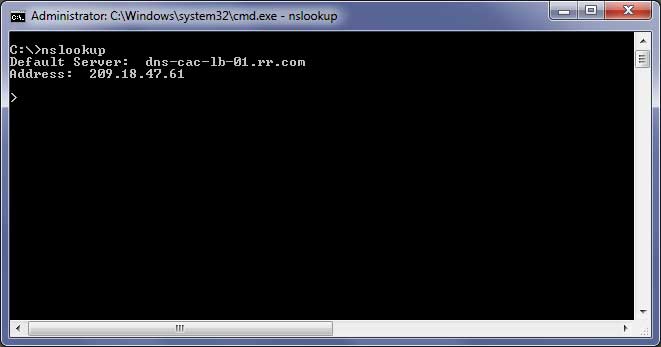
To use nslookup, simply open a command prompt and type nslookup and press enter. Then you will be at the nslookup prompt and be shown your DNS servers name and IP address. If you use your ISPs DNS servers then that is what will be shown. If you use a DNS server on your network then that is what will show up as your default server. Keep in mind that if you use an outside DNS server such as the one belonging to your ISP then you will not be able to resolve names on your local network since they won’t be registered with your ISP’s DNS servers.
2. Perform Domain and IP Address Lookups
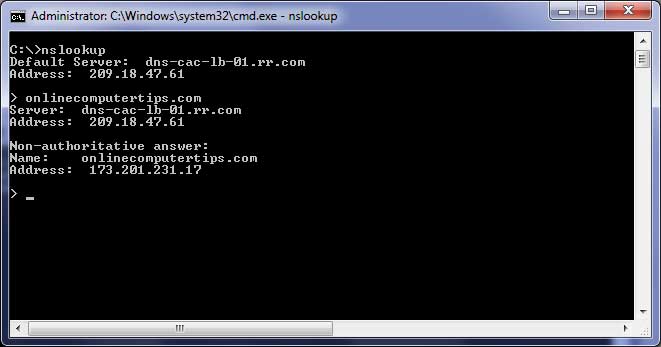
After you have the nslookup prompt up you can type in the name or IP address of the computer you want to resolve. You can even resolve website IP addresses by simply typing in the website address. The first part of the results show what DNS server name and IP address was used to answer your request and the second part shows the name and IP address of the host or website you ran the query on.
Querying Specific DNS Record Types
1. Query Nameserver Records
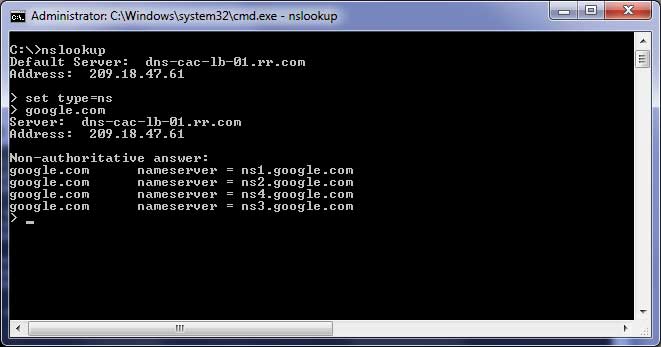
One trick you can use to get all the name servers of a location is to set the type of nslookup to name servers. This is done by typing set type=ns at the prompt and pressing enter and then typing in the website address again.
2. Query Mail Server Records
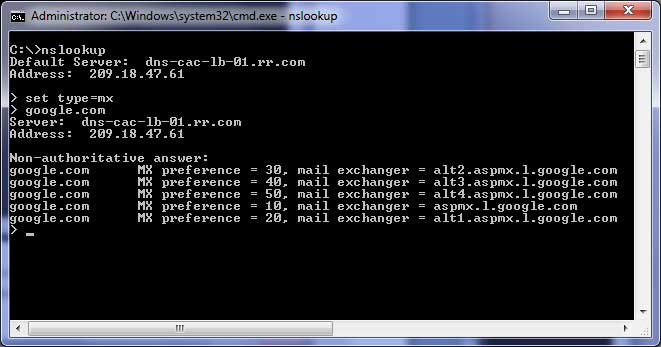
There are other types of records you can look for such as mail server records by using the set type=mx setting. This command filters response data specifically for Mail Exchanger records assigned to your target domain. It helps verify whether inbound email routing for a domain points to the correct mail server hosts.
Exploring Nslookup Help Parameters and Program Exit
1. Review Command Parameters and Helpful Options
There are many other things you can do with the nslookup command and if you type help at the prompt you will be shown all your options. Don’t be afraid to try some of them out and see what kind of useful information you can get about other servers on your network and on the Internet.
2. Manage Server Parameters and Session Variables
Entering the NAME variable prints information about the target domain using your default server. Using NAME1 NAME2 queries NAME1 while using NAME2 specifically as the server. Typing help or ? displays information on common parameters, while typing all prints your current server and host options. You can adjust debugging parameters with debug or d2, manage search lists using search, or set target record types using type=X or querytype=X.
3. Exit Nslookup Submode Safely
To exit the nslookup command and go back to a regular command prompt you just need to type exit and press enter. If you don’t and want to do other commands that aren’t nslookup related then they won’t work and you will get nslookup error messages. This returns your terminal window back to the primary operating system shell.