Last Updated on April 16, 2026
If you use the Print Screen key on your keyboard frequently then you would think everyone would know how to use it since it’s so easy. Knowing how to use the Print Screen key is not as common as you may think. As a matter of fact there are many people who don’t even know it’s there! This computer tip will show you how to use the Print Screen key in Windows so you can increase your computing productivity.
The Print Screen key is used to copy or take a picture of what you are doing on your computer at that given moment. This is useful if you need to send a screen shot to somebody for some technical support for example. It’s also useful if you want someone to see a particular document or file that you are working on but they don’t have the software to open it on their computer or if it’s too large to email to them. Or if you need a picture of something on your screen to add to an existing document or paste into your photo editing application.
In modern versions of Windows 11, pressing the Print Screen (PrtSc) key now opens the Snipping Tool by default instead of just copying to the clipboard. This gives you a toolbar at the top of your screen to choose between a rectangular snip, free-form, window, or full-screen capture. Once captured, the image is sent to your clipboard and also saved in the Snipping Tool library where you can annotate it. You can still paste these captures directly into Word, Paint, Photoshop, or an email.
How to Disable the Snipping Tool Pop-up
If you find the new Snipping Tool overlay annoying and want the key to simply copy your full screen to the clipboard like it used to, you can change it back:
- Open Settings and go to Accessibility > Keyboard.
- Toggle the switch for “Use the Print screen button to open screen snipping” to Off.
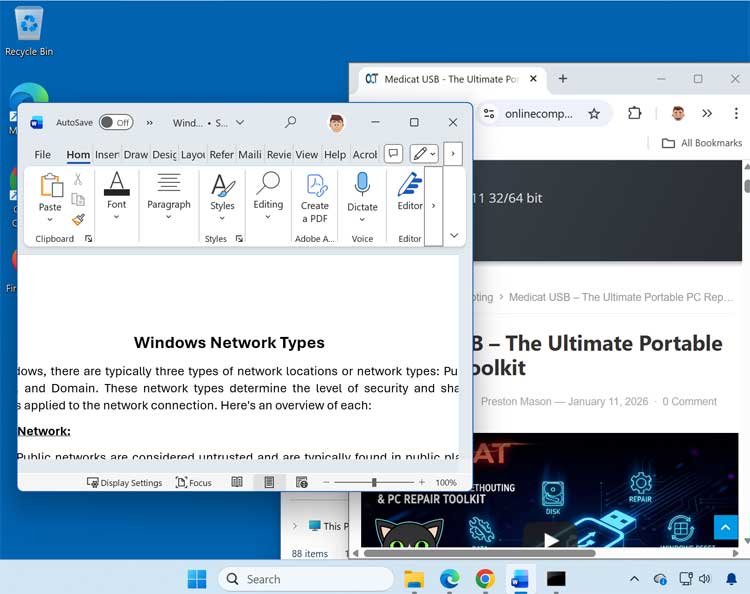
The Print Screen key can be used in 2 ways. If you want to take a picture of everything on your screen simply press the key and then copy it into your program of choice. Here is an example of what happens when you press the key.
Notice how it captured every open window as well as the taskbar and Start Button.
Saving Screenshots Automatically
If you want to skip the “pasting” step entirely, use the Windows Key + PrtSc. Your screen will dim for a second, and Windows will automatically save a full-screen image as a .png file in your Pictures > Screenshots folder. This is the fastest way to take multiple screenshots in a row without stopping to save each one manually.
If you use the key combination of Alt+PrintScreen then it will only capture the active window which is whatever window you have up front.
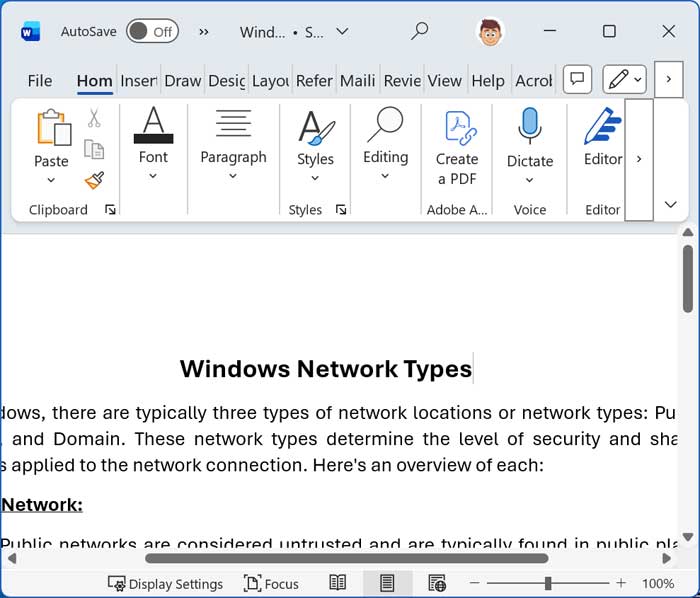
Notice how this image is the same as the open window that was in front in the previous image. This can be used when you are only concerned about capturing a screen shot of one particular window or program rather than everything on your screen.
While the Print Screen key is the classic method, the Windows Key + Shift + S shortcut is the preferred choice for IT professionals. It triggers the Snipping Tool immediately and allows you to capture specific areas of the screen with much higher precision. The Snipping Tool also includes a Screen Recording mode, allowing you to capture video of your screen for quick tutorials or troubleshooting demonstrations.
For additional training resources, check out our online IT training courses.
Check out our extensive IT book series.