If Outlook suddenly stopped sending or receiving emails right after installing Windows update KB5074109, you are not alone. Many users with POP3 accounts in Outlook Classic have reported freezes during send/receive, messages stuck in the Outbox, and PST data problems that started immediately after this January 2026 update. This article explains what changed with KB5074109, why POP3 accounts are affected the most, and the practical steps you can take to keep your email flowing without removing an important security update.
What’s going wrong after KB5074109
Windows 11 update KB5074109, released January 13, 2026, is a cumulative security and quality update for versions 24H2 and 25H2 that fixes over 100 security vulnerabilities and improves platform stability. On some systems using Outlook Classic with POP3 accounts, the way this update interacts with the MAPI layer appears to break Outlook’s normal communication with the operating system.
Typical symptoms include:
- Outlook freezing or hanging during send/receive and refusing to close without Task Manager.
- Messages stuck in the Outbox, failed authentication/handshake with POP3 servers, and sent emails missing from Sent Items even though they were delivered.
- exe continuing to run in the background, requiring a restart to reopen Outlook, and an increased chance of PST file corruption.
- Error code 0x800CCC messages
Because KB5074109 addresses actively exploitable security flaws, uninstalling it is not recommended as a long‑term solution.
How to check if KB5074109 is installed
Before troubleshooting, you should confirm whether KB5074109 is actually installed on their PC.
Two straightforward methods:
- Windows Settings: Go to Settings > Windows Update > Update history and look for “KB5074109” in the list of installed updates.
- PowerShell: Open PowerShell and run: Get-HotFix -Id KB5074109 to query that specific update directly.
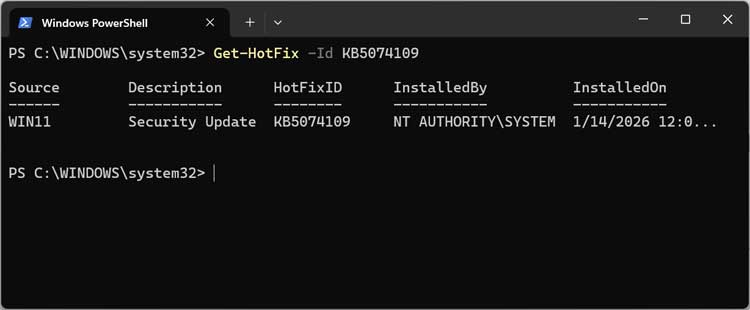
If the update appears in either location, the system is running KB5074109 and Outlook issues are likely related.
Safer workarounds than uninstalling the update
Until Microsoft ships a dedicated fix for POP3 hangs, there are several workarounds your article can walk users through.
- Use Outlook Safe Mode
- Launching Outlook in Safe Mode (for example, by holding Shift while double‑clicking the Outlook icon) can help rule out add‑in conflicts.
- Use webmail or another client temporarily
- If the email account also offers a web interface, users can access their mail via browser until the issue is resolved, or use an alternative mail program.
- Repair or recreate the Outlook profile
- Rebuilding or repairing the Outlook profile sometimes helps, though it is not a guaranteed or permanent fix.
- Switch from POP3 to IMAP where possible
- When the provider supports IMAP, switching protocol can avoid the specific POP3 bug and also modernizes the account configuration.
- Try the new Outlook for Windows
- Using the newer Outlook app built into Windows 11 can bypass some Classic‑specific behavior that appears to be affected.
Registry tweaks are mentioned in some guides, but editing the registry is risky and should be reserved for advanced users who understand the implications.
Repairing a corrupt PST file
If PST corruption has already occurred, your article can outline repair options with clear cautions.
- Microsoft Inbox Repair Tool (ScanPST)
- Microsoft offers a built‑in Inbox Repair tool that can scan and attempt to fix PST and OST data files; the official documentation explains how to locate and run it.
- Third‑party PST repair utilities
- Tools such as Stellar Repair for Outlook can scan, repair, and extract data from damaged PST files, and the vendor provides a detailed write‑up of the KB5074109 issue with additional suggestions.
- Export a copy of the current Outlook data file via File > Open & Export > Import/Export > Export to a file > Outlook Data File (.pst), selecting the top‑level mailbox to capture all folders and contacts.
- Point the repair tool (Microsoft’s or third‑party) at the exported PST, run a repair, then open or import the repaired file back into Outlook.
For additional training resources, check out our online IT training courses.
Check out our extensive IT book series.