If you’ve ever found yourself deep in a Windows Command Prompt session, you know the frustration of typing out a long, complex string of characters only to realize you need to run it again ten minutes later. While many users are familiar with the basic “up arrow” trick, cycling through fifty commands one by one is a recipe for a headache.
Knowing how to efficiently manage your command history isn’t just for “power users”, it’s a massive time-saver for anyone who touches the terminal. Whether you’re troubleshooting network issues or automating tasks, these two methods will help you navigate your recent activity like a pro.
The Basic Up-Arrow Method (And Its Limitations)
Before we dive into the advanced tricks, let’s acknowledge the baseline. Most of us start by pressing the Up Arrow key. Windows stores your recent commands in a temporary buffer, and the arrow keys let you cycle through them chronologically.
This works great if you just need the command you typed thirty seconds ago. However, if you’ve been working all day and need to find a specific line from two hours ago, the “arrow key marathon” becomes inefficient. That’s where the following two methods come in.

Method 1: The F7 Graphical Menu (The User’s Favorite)
The most visual and intuitive way to see what you’ve been up to is by using a hidden keyboard shortcut: F7.
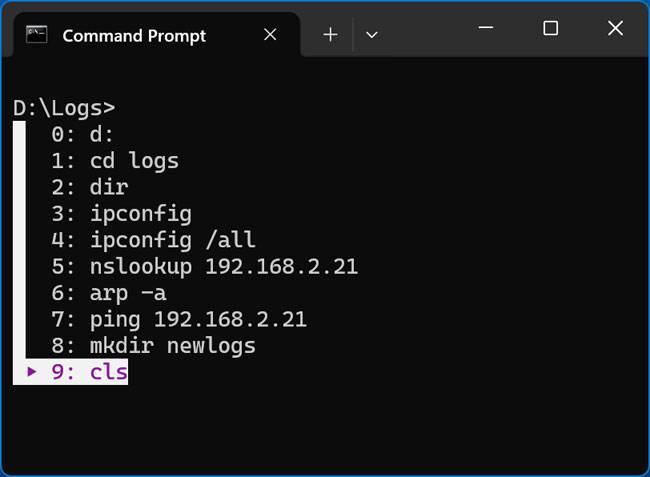
When you are inside the Command Prompt window and press F7, a small graphical pop-up menu appears in the center of the terminal. This window lists every command you’ve entered during the current session, numbered and organized.
Why use F7?
- Searchability: Instead of scrolling blindly, you can see a list and quickly identify the command you need.
- Instant Execution: Use your arrow keys to highlight the desired command and press Enter. The terminal will instantly re-run that command for you.
- Ease of Use: It’s a simple, one-button solution that doesn’t require you to remember any syntax.
Method 2: The doskey /history Command (The Old-School Way)
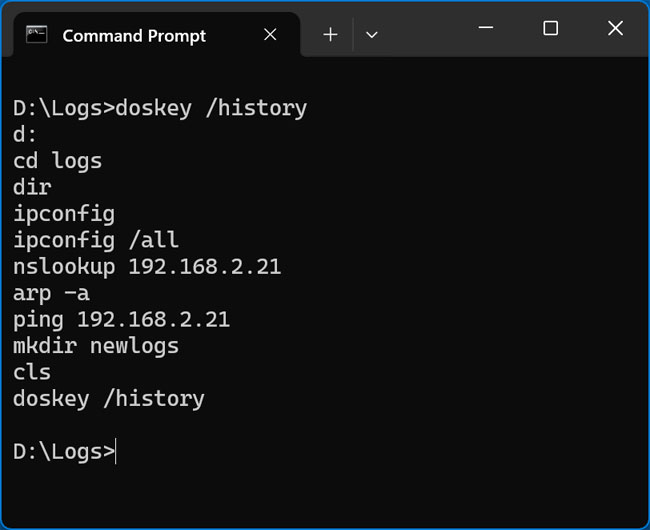
If you prefer keeping your hands on the home row or need a text-based list of your history, the Doskey command is your best friend. By typing doskey /history and pressing Enter, the Command Prompt will print a clean list of every command you’ve used in that session directly into the window.
Why use Doskey?
- Documentation: If you are following a series of steps and want to save them for later, you can run this command and then copy/paste the entire list into a Notepad file or a technical document.
- Scripting: Because it outputs text directly to the console, it’s a great way to verify what a script has done or to export your workflow to a log file.
- No Pop-ups: Some users find the F7 menu distracting; doskey keeps everything inline and consistent with the terminal experience.
Which Method Should You Use?
The “right” choice depends on your goal. If you simply want to find an old command and run it again quickly, F7 is undeniably the winner. It’s fast, visual, and requires the least amount of effort.
On the other hand, if you are a developer or a system admin who needs to keep a record of the commands you used to fix a server, doskey /history is the superior choice because it allows for easy copying and archiving.
Final Thoughts on Command Line Efficiency
Mastering the Command Prompt is all about reducing friction. By moving beyond the simple up-arrow and utilizing the F7 menu or the Doskey command, you can significantly speed up your workflow and reduce the likelihood of typos.
The next time you find yourself staring at a blank cursor, remember these shortcuts. They are small tools, but in the world of IT and productivity, those saved seconds add up quickly.
For more quick Windows tips and terminal tricks, be sure to keep exploring the hidden shortcuts built right into your operating system!
For additional training resources, check out our online IT training courses.
Check out our extensive IT book series.