Last Updated on September 13, 2026
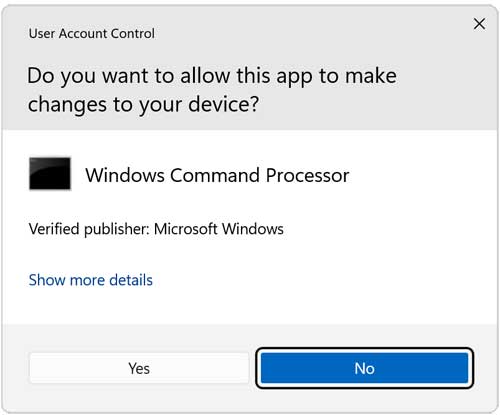
While using your computer you may have noticed that when you try to perform certain actions on your computer that involve changing system settings or installing software you get a popup message asking for your permission to continue. This is to help protect you and your computer from programs that you may not want running on your computer that can potentially cause harm to your PC.
User Account Control (UAC) is a strict security feature in Windows that prevents unauthorized changes to your system. UAC does this by asking you for explicit permission or an administrator password before performing actions that affect your computer’s operation. This stops unwanted software installations dead in their tracks.

Many people find it highly annoying to constantly give the computer permission to do basic tasks. It remains a good thing for most users since it offers a massive level of protection that older operating systems lacked. Many Windows power users simply disable this feature so they camanage their computer’s protection on their own terms.
Common UAC Alert Messages
UAC will alert you with a few different specific warning messages depending on the software execution. You need to understand exactly what these prompts mean before clicking anything.
1. Windows Needs Your Permission
A native Windows function or core program that affects other users needs your permission to start. Make absolutely sure that this is a function you actually triggered yourself. Do not approve this prompt if you were just randomly browsing the web.
2. A Program Needs Permission
This happens when a third-party application needs your permission to start. It has a valid digital signature indicating its exact name and software publisher. This cryptographic signature helps ensure the program is exactly what it claims to be.
3. Unidentified Program Access
This is caused by a program that your system administrator specifically blocked from running. The software lacks a verified publisher signature. To run this sketchy program, you must have an administrator manually unblock it in the advanced security settings.
How to Turn Off User Account Control
The main reason to keep UAC active is to prevent malware and spyware from installing silently in the background. This comes in handy when you have guest users who visit inappropriate websites or download risky files. If you are confident that you will not be installing shady software, you can turn this feature off completely.
1. Access Windows User Accounts
Press the Windows Start button and type Control Panel into the search bar. Open the legacy Control Panel app and navigate directly to the User Accounts section. This area handles all your local profile security policies.
2. Open the UAC Configuration Menu
Click on the text link that says Change User Account Control settings. This applies to modern operating systems like Windows 10 and Windows 11. Older systems like Windows 7 use a slightly different naming convention for this exact same menu.
3. Slide to Never Notify
A new window will appear featuring a vertical slider bar on the left side. Grab the slider and pull it all the way down to the bottom where it says Never Notify. This completely disables the screen dimming effect and constant popup interruptions.
4. Click OK to Save
Click the OK button at the bottom of the window to lock in your choice. You may have to enter your administrator credentials one last time depending on your current login status. Windows requires this final verification to apply the permanent security downgrade.
5. Reboot the Operating System
Restart your computer entirely for the core registry changes to take effect. The UAC prompts will stop bothering you once you log back into your desktop. Check out third-party shortcut apps if you want to run a program without seeing the UAC prompt while keeping the global security feature active.
For additional training resources, check out our online IT training courses.
Check out our extensive IT book series.