Last Updated on August 23, 2026
Everyone loves a faster way to do things in order to increase your productivity. Microsoft realized this when they added shortcut keys to Windows as well as their other software products. Most other software companies have shortcut keys within their products as well. And many of them are interchangeable between different programs
Windows has many built in shortcut key combinations that can be used instead of the mouse when working in Windows. These shortcuts allow you to do many things such as open, close, and navigate the Start menu, desktop, menus, dialog boxes, and web pages using only the keyboard. This comes in handy so you don’t have to take your hands off the keyboard to do a simple task such as copy or paste some text.
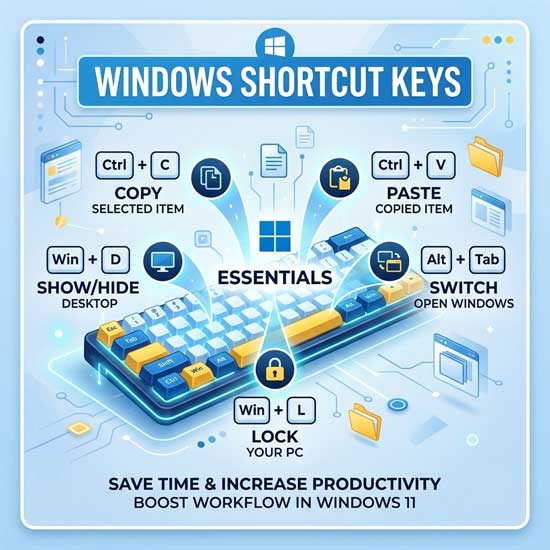
Check out this massive list of Windows keyboard shortcuts and try some for yourself. They should be interchangeable with any version of Windows for the most part. We have also added brand new shortcuts for modern Windows 11 features like Copilot and Snap Layouts to keep your skills up to date.
General Keyboard Shortcuts
1. Basic Editing Commands
You can press CTRL+C to Copy highlighted text. Press CTRL+X to Cut text entirely. Press CTRL+V to Paste the text into a new location. Press CTRL+Z to Undo your last action. Press CTRL+Y to Redo an action you just undid. These basic commands work in almost every single application available today.
2. File Deletion Commands
Pressing the DELETE key sends the selected file straight to the Recycle Bin. Pressing SHIFT+DELETE deletes the selected item permanently without placing the item in the Recycle Bin first. Use this permanent deletion shortcut with extreme caution to avoid losing important data forever.
3. Drag and Drop Modifiers
Hold CTRL while dragging an item to copy the selected item to the new location instead of moving it. Hold CTRL+SHIFT while dragging an item to create a shortcut to the selected item. This saves you from having to right-click and navigate through context menus to create desktop links.
4. Renaming and Searching
Press F2 to quickly Rename the selected item without clicking it twice. Press F3 to open the Search bar for a file or folder instantly. These quick keys save you several seconds of mouse travel every time you organize your files.
5. Text Navigation Commands
Press CTRL+RIGHT ARROW to move the insertion point to the beginning of the next word. Press CTRL+LEFT ARROW to move the insertion point to the beginning of the previous word. Press CTRL+DOWN ARROW to move the insertion point to the beginning of the next paragraph. Press CTRL+UP ARROW to move the insertion point to the beginning of the previous paragraph. This makes editing long documents much faster.
6. Text Selection Commands
Press CTRL+SHIFT with any of the arrow keys to highlight a specific block of text rapidly. Press SHIFT with any of the arrow keys to select more than one item in a window or on the desktop. Press CTRL+A to Select All items currently on the screen. Selecting large batches of files becomes effortless with these combinations.
7. Window Management Commands
Press ALT+ENTER to view the properties for the selected item. Press ALT+F4 to close the active item or completely quit the active program. Press ALT+SPACEBAR to open the shortcut menu for the active window. Press CTRL+F4 to close the active document in programs that allow you to have multiple documents open simultaneously.
8. Application Switching
Press ALT+TAB to switch seamlessly between open items. Press ALT+ESC to cycle through items in the exact order they were opened. Press F6 to cycle through screen elements in a window or directly on the desktop. Mastering these switching shortcuts completely eliminates your reliance on the taskbar.
9. Interface Navigation
Press F4 to display the Address bar list in My Computer or Windows Explorer. Press SHIFT+F10 to display the right-click shortcut menu for the selected item. Press CTRL+ESC to display the Start menu if your Windows key is broken.
10. Menu Navigation
Press ALT+Underlined letter in a menu name to display the corresponding menu. Press F10 to activate the menu bar in the active program. Press the RIGHT ARROW to open the next menu to the right or open a submenu. Press the LEFT ARROW to open the next menu to the left or close a submenu.
11. General Navigation
Press F5 to completely refresh the active window or web page. Press BACKSPACE to view the folder one level up in My Computer or Windows Explorer. Press ESC to cancel the current running task. Press SHIFT when you insert a CD or removable drive to prevent the media from automatically playing.
Dialog Box Keyboard Shortcuts
1. Tab Navigation
Press CTRL+TAB to move forward through open tabs inside a settings window. Press CTRL+SHIFT+TAB to move backward through open tabs. Press TAB to move forward through specific dialog options. Press SHIFT+TAB to move backward through specific dialog options. This keeps your hands on the keyboard when tweaking system configurations.
2. Option Selection
Press ALT+Underlined letter to carry out the corresponding command or select the corresponding option. Press ENTER to carry out the command for the active option or button. Press SPACEBAR to select or clear the check box if the active option is a check box. Use the Arrow keys to select a button if the active option is a group of option buttons.
3. Help and Directory Navigation
Press F1 to display the Help menu for almost any active application. Press F4 to display the items in the active list. Press BACKSPACE to open a folder one level up if a folder is selected in the Save As or Open dialog box.
Windows Explorer Keyboard Shortcuts
1. Window Scrolling
Press END to display the bottom of the active window immediately. Press HOME to display the top of the active window immediately. These keys stop you from dragging the scroll bar down massive lists of files.
2. Folder Expansion
Press NUM LOCK+ASTERISK (*) to display all subfolders under the selected folder. Press NUM LOCK+PLUS SIGN (+) to display the contents of the selected folder. Press NUM LOCK+MINUS SIGN (-) to collapse the selected folder completely. Using the number pad makes expanding deep directory trees much faster.
3. Arrow Key Navigation
Press the LEFT ARROW to collapse the current selection if it is expanded or select the parent folder. Press the RIGHT ARROW to display the current selection if it is collapsed or select the first subfolder. You can navigate your entire hard drive without ever touching the mouse.
Essential Windows Key Shortcuts
1. Basic Windows Key Commands
Press the Windows Key to open or close the Start menu. Press Windows Key + D to display and hide the desktop instantly. Press Windows Key + E to open File Explorer immediately. Press Windows Key + I to open the modern Windows Settings app without digging through menus.
2. Advanced Windows Key Commands
Press Windows Key + L to instantly lock your PC or switch accounts when walking away from your desk. Press Windows Key + M to minimize all open windows. Press Windows Key + R to open the Run dialog box for executing advanced commands. Press Windows Key + V to open the powerful clipboard bin to view and paste previously copied text.
3. Snipping Tool and Search
Press Windows Key + Shift + S to open the Snipping Tool to take a custom screenshot. Press Windows Key + S to open the Windows Search bar. These are two of the most heavily used shortcuts for modern digital workers.
4. Snap Layouts and Window Placement
Press Windows Key + Left Arrow or Windows Key + Right Arrow to snap your active window to exactly half of the screen. Press Windows Key + Up Arrow to maximize the window completely. Press Windows Key + Down Arrow to restore a maximized window or minimize it entirely. This makes organizing multiple applications incredibly simple.
5. Virtual Desktops and AI
Press Windows Key + CTRL + D to create a brand new virtual desktop for separating your workflows. Press Windows Key + CTRL + Left/Right Arrow to switch rapidly between your active virtual desktops. Press Windows Key + C to launch Windows Copilot to access artificial intelligence directly from your desktop.
Check out this Microsoft Office specific shortcut keys.
For additional training resources, check out our online IT training courses.
Check out our extensive IT book series.