Last Updated on August 1, 2026
If you are in the IT industry you most likely know how popular virtualization has become over the years. Virtualization allows you to take a physical server and divide its hardware resources into multiple virtual machines running on the same host. That way you can run multiple server workloads while saving money and physical datacenter rack space. The virtual machines share underlying CPU, memory, and storage, so monitoring resource consumption remains critical for system administrators.
VMware stands as the leading platform in enterprise virtualization, offering vSphere and ESXi hypervisors to power corporate datacenters. Managing these environments requires granular visibility into hardware utilization, virtual machine status, and storage allocation across your infrastructure. Third-party utility developers create specialized software tools to extend the built-in management capabilities of VMware vCenter Server.
One essential free utility for vSphere administrators is RVTools. This lightweight application connects directly to your vCenter Server or ESXi hosts to inventory critical infrastructure statistics. Once logged in, RVTools retrieves details across your cluster and presents system data in a consolidated, readable interface.
How to Use RVTools to Audit and Manage VMware Environments
1. Download and Connect RVTools to vSphere
Download the free installer for RVTools and run it on your local Windows administrator workstation. Launch the application and enter the IP address or host name for your vCenter Server or standalone ESXi host alongside your admin credentials. RVTools establishes a secure connection to your vSphere API and gathers configuration data across your entire cluster.
2. Analyze Virtual Machine Specifications in the vInfo and vMemory Tabs
Once authenticated, navigate through the top navigation tabs to inspect specific virtual machine metrics. Click on the vInfo tab to examine VM power states, guest operating system types, assigned vCPUs, and host locations. Switch to the vMemory tab to audit allocated memory, active RAM consumption, maximum limits, and memory ballooning metrics across all running virtual machines.
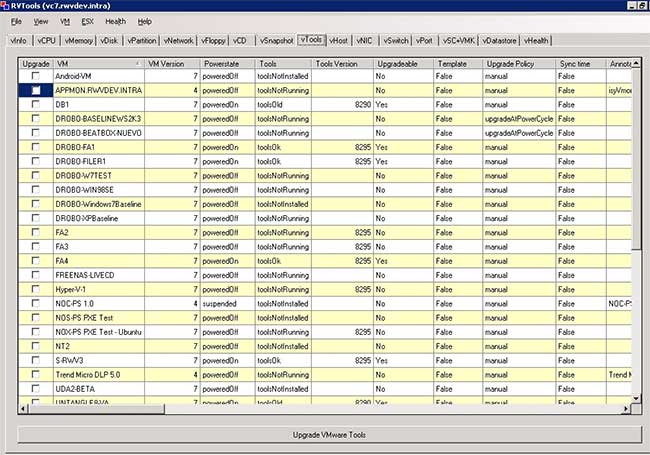
3. Upgrade Guest Software on the vTools Tab
Select the vTools tab to audit the current version and health status of VMware Tools across your virtual machine fleet. The grid displays whether guest drivers are up to date, running, or missing on each guest operating system. Highlight out-of-date virtual machines and click the upgrade action button at the bottom of the window to initiate automated VMware Tools updates.
4. Audit Physical Infrastructure Details Using the vHost Tab
Click the vHost tab to view granular hardware statistics for all connected ESXi host servers. This view details CPU model types, clock speeds, total physical memory, active NIC count, and datacenter assignments for each host. Reviewing these host metrics helps system administrators identify resource bottlenecks and plan future hardware expansion.
5. Review Cluster Health Alerts on the vHealth Tab
Navigate to the vHealth tab to scan for potential operational issues and configuration anomalies across your VMware cluster. This interface automatically flags critical problems such as low datastore disk space, detached virtual disks, abandoned snapshots, and outdated host configurations. You can customize the reporting criteria and filter specific VMs or datastores to focus on high-priority infrastructure warnings.
6. Filter and Export VMware Reporting Data
Apply search filters across any tab to isolate specific hosts, datastores, or named virtual machines in large enterprise deployments. Once filtered, click the export option to output your audit data into CSV or Microsoft Excel spreadsheets. System administrators can run these export operations on a scheduled basis to document environment health and plan for hardware licensing audits.
For additional training resources, check out our online IT training courses.
Check out our extensive IT book series.