Last Updated on March 27, 2026
Almost everyone who has a computer has internet access and uses email in some form or another and they usually have a group of people that they email more than others as well. Most people like to have shortcuts on their desktops for things they use most often such as for opening programs or certain files.
Over time, these small conveniences become part of how people interact with their computers on a daily basis. What starts as a simple preference often turns into a productivity habit, where reducing even a few clicks can make routine tasks feel faster and more natural. Desktop organization, in this way, becomes a personal workflow rather than just a visual choice.
If you have someone you e-mail on a regular basis you can create a shortcut that will open a new e-mail to that person when you click it. You can then add this shortcut icon to your desktop, quick start bar or any other place you like. This is assuming you use an email client such as Outlook or Thunderbird. This won’t work for webmail such as Yahoo or Gmail unless you access that email account with an email client installed on your computer.
This approach is especially useful in work or home environments where repeated communication with the same contacts is common. Instead of searching through an address book or previous messages, a single click can immediately start the conversation, keeping focus on the message itself rather than the steps needed to begin it.
First what you need to do is right click your desktop and choose New and then Shortcut. In the dialog box type in mailto: followed by the e-mail address of the person you want to create the shortcut for (with no spaces).
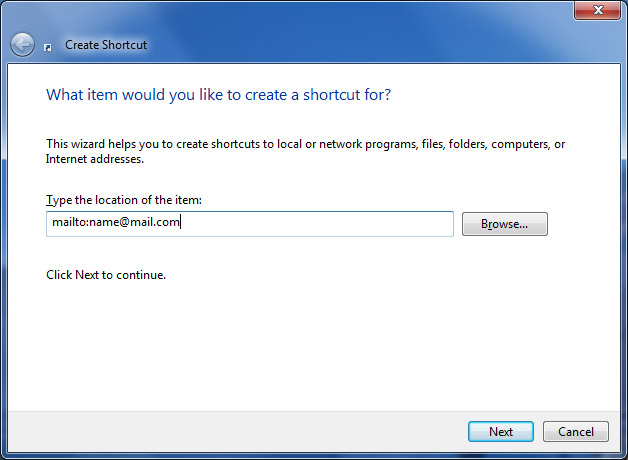
The mailto function has been part of operating systems for many years, quietly enabling quick communication without requiring advanced technical knowledge. Because it relies on standard formatting, it works reliably across different setups as long as a default email program is configured.
Then click on Next and name your new shortcut. Then click finish. From here you can move or copy your shortcut icon wherever you like. When you double click it, it will bring up a new e-mail message in your email program with that person’s e-mail address filled in.