Last Updated on April 28, 2026
Everyone has computer issues at some point and it’s great when you can click around your menus and open other programs to help figure out the problem. But not all problems can be fixed from the GUI (Graphical User Interface) and you may at some point have to use other more advanced methods to fix your computer problems.
Sometimes when troubleshooting your computer you will need to use command line based utilities to find information or run programs that you can’t do within Windows. Today, the best way to access these tools is through the Windows Terminal. It allows you to run classic Command Prompt and PowerShell in a single, tabbed window. To open it with full permissions, right-click the Start button and select Terminal (Admin). While people still call these “DOS commands,” they are actually part of the Windows command-line interface used for deep system repair and network diagnostics.
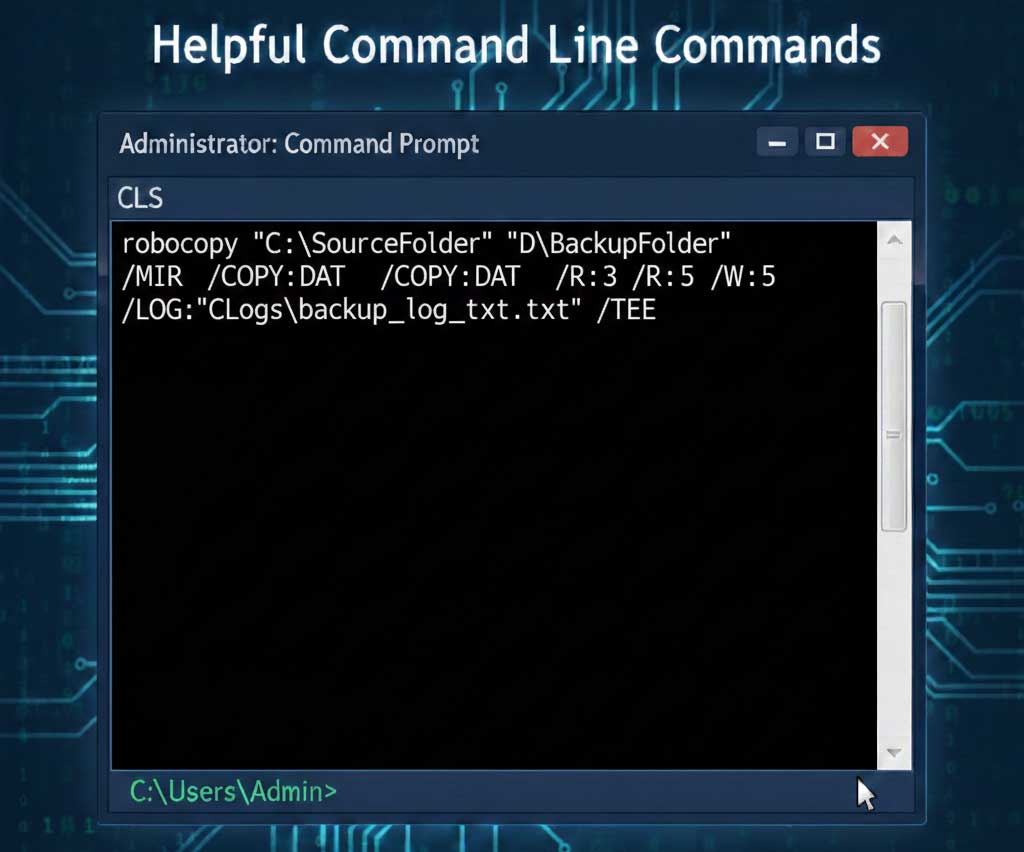
To get to a command prompt go to Start, Run and type cmd and click Ok.
Some of these commands use switches which are different options that will make the command do different things. Switches are usually used by typing a / and then the switch after the command. For example: Command /switch. You can also type Command /? for help on that particular command such as the available switches and how to use them.
- Chkdsk – Scans your drive for file system errors. On modern SSDs, the /f switch is usually all you need to fix logical errors.
- Dir – Displays every file and folder inside your current location. This is the fastest way to “see” where you are when the graphical interface is frozen or unavailable.
- /p : Pauses the list after each screen, essential for folders with hundreds of files.
- /s : Searches the current folder and all subfolders for a specific file. (Example: dir /s *.docx)
- /ah : Displays hidden files that you normally wouldn’t see in File Explorer.
- Exit – Exits the command prompt utility.
- Gpupdate – Refreshes local and Active Directory-based Group Policy settings, including security settings.
- Hostname – Displays the host name portion of the full computer name of the computer.
- Ipconfig – Displays all current TCP/IP network configuration values and refreshes Dynamic Host Configuration Protocol (DHCP) and Domain Name System (DNS) settings.
- /all Displays the full TCP/IP configuration for all adapters.
- /renew : Renews DHCP configuration for all adapters.
- /release : Sends a DHCPRELEASE message to the DHCP server to release the current DHCP configuration and discard the IP address configuration.
- Mkdir – Creates a directory or subdirectory.
- Mmc – Opens Microsoft Management Console (MMC).
- Move – Moves one or more files from one directory to the specified directory.
- Netstat – Displays active TCP connections.
- DISM – Used to repair the Windows System Image when SFC cannot fix corruption. /Online /Cleanup-Image /RestoreHealth : Connects to Windows Update to download and replace damaged system files.
- Get-Process – (In PowerShell) A much more readable way to see every program running on your PC compared to the old tasklist.
- PowerShell – Switches the current prompt to a PowerShell environment for more advanced scripting capabilities.
- Ping – Verifies IP-level connectivity to another TCP/IP computer by sending Internet Control Message Protocol (ICMP) Echo Request messages. PathPing is a similar command you can check out.
- Rename – Changes the name of a file or a set of files.
- Shutdown – Allows you to shut down or restart a local or remote computer. Used without parameters, shutdown will logoff the current user.
- /s : Shuts down the computer.
- /r : Reboots the computer.
- /t 0 : Sets the timer to zero seconds for an immediate restart.
- /a : Aborts a scheduled shutdown.
- Sfc – The “System File Checker.” This is the first command you should run if Windows is crashing or missing features.
- /scannow :Scans and repairs all protected system files immediately.
- /scanonce : Scans all protected system files once.
- /scanboot : Scans all protected system files every time the computer is restarted.
- /revert: Returns the scan to its default operation./blockquote
- Xcopy – Copies files and directories, including subdirectories.
Pro Tip: If you aren’t sure how to use a specific command, just type the command followed by /? (e.g., xcopy /?). This will display a full manual of every switch and option available for that tool.
For additional training resources, check out our online IT training courses.
Check out our extensive IT book series.