Last Updated on April 28, 2026
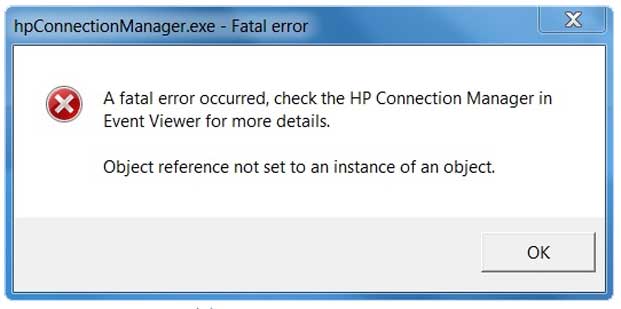
If you’ve spent any time on a PC, you’ve seen them: those cryptic pop-ups and blue screens that seem designed to be as unhelpful as possible. In the old days, we had to deal with MS-DOS prompts and floppy disk errors, but modern Windows 11 errors are a different beast.
Today, errors are usually tied to driver conflicts, memory leaks, or UEFI configuration issues. Here is a breakdown of the most common “modern” errors and more importantly how to actually fix them without losing your mind.
1. The “Blue Screen” Era (Stop Codes & QR Codes)
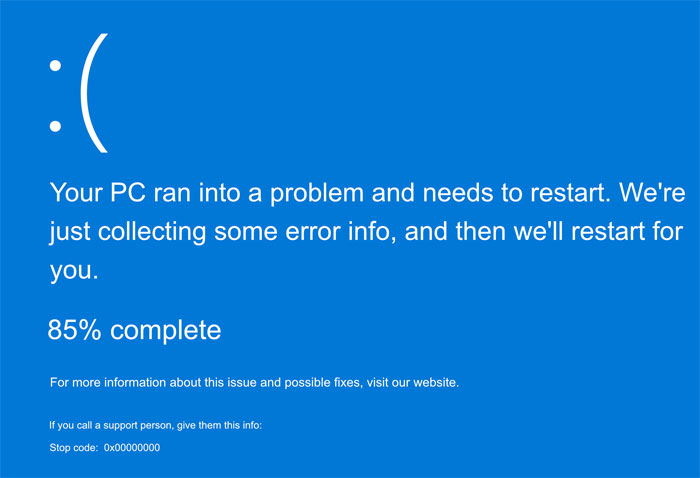
In 2026, the “Fatal Exception” has been replaced by the high-resolution Blue Screen of Death (BSOD). Instead of just hex codes, you now get a QR code and a “Stop Code.”
- IRQL_NOT_LESS_OR_EQUAL: This is almost always a driver issue. If you just installed a new GPU or updated a Wi-Fi driver, that’s your culprit. Windows no longer has a “Last Known Good Configuration” button, so your best bet is to boot into Safe Mode and Roll Back the driver in Device Manager.
- CRITICAL_PROCESS_DIED: This sounds scary because it is. It means a core part of the Windows kernel stopped working. This is often caused by system file corruption.
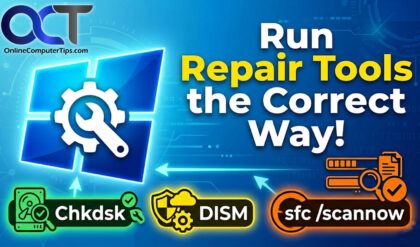
- Quick Fix: Run the Command Prompt as Admin and type sfc /scannow. It’s the oldest trick in the book, but it still works.
2. Boot & Disk Errors (The “Missing” Drive)
Since modern PCs use UEFI and NVMe SSDs instead of old BIOS and mechanical drives, the errors have changed.
- “No Boot Device Found” or “Insert Boot Media”: This has replaced the old “Non-system disk” error. Usually, this happens because your SSD has “gone to sleep” or the UEFI boot order got scrambled.
- The Fix: Restart and tap F2 or Del to enter your UEFI settings. Ensure “Windows Boot Manager” is set as your #1 priority. If the drive isn’t listed at all, it might be a hardware failure.
- “Checking File System on C:”: Windows does this when it detects a “dirty bit” (an improper shutdown). Let it finish. If it happens every time you boot, your drive might be failing.
3. Memory & Resource Errors
Even with 32GB or 64GB of RAM being common in 2026, we still run out of “space.”
- “Your system is low on virtual memory”: This happens when your “Commit Limit” is reached. It’s usually caused by a “Memory Leak” in a specific program (looking at you, Chrome tabs and video editors).
- The Fix: Don’t just add a bigger paging file. Open Task Manager (Ctrl+Shift+Esc), go to the Details tab, and sort by Memory. Kill the process that is hogging the most resources.
- “Out of Memory to Render Page”: If you see this while printing, your printer’s onboard memory is overwhelmed. Try printing the document in smaller “chunks” (5 pages at a time) rather than the whole 100-page PDF at once.
4. Application & System Conflicts
- “This application requires the Windows Installer”: This means the .msi service is stuck or disabled. Instead of looking for a download, just open the Services app (services.msc), find Windows Installer, and manually click Start.
- “The margins are set outside the printable area”: This isn’t a Windows error; it’s a physics error. Your document is trying to print where the printer’s physical rollers are located. Shrink your margins by 0.1 inches and try again.
The “Golden Rule” of 2026 Troubleshooting
Most modern errors can be decoded by the Windows Event Viewer. If a pop-up disappears too fast to read:
- Right-click the Start button and select Event Viewer.
- Go to Windows Logs > System.
- Look for the Red Error Icons at the exact time of the crash.
For additional training resources, check out our online IT training courses.
Check out our extensive IT book series.