Last Updated on July 26, 2026
Safe Mode is the ultimate diagnostic environment for Windows. If your computer is crashing, freezing, or completely crippled by malware, Safe Mode is your life raft. It gives you direct access to core administrative controls without software interference.
When you boot into this mode, Windows starts with only the absolute bare minimum files and drivers needed to run. Essential system components load while everything non-critical gets completely ignored by the operating system.
If your computer runs perfectly fine in Safe Mode, you immediately know that your core hardware is healthy. This means the glitch is being caused by a third-party app, a bad driver update, or a virus. Isolating these software headaches becomes much easier.
In the old days of Windows 7, you could just mash the F8 key on your keyboard while the computer was turning on. Modern computers running Windows 10 and Windows 11 boot up so fast that the old F8 trick no longer works out of the box.
There is a trick you can use to get the F8 boot option back, but today there are three primary ways to access Safe Mode. These methods depend entirely on whether your computer can reach the login screen or if it is completely dead in the water. Here is exactly how to get in.
Method 1: The Settings Menu (When You Can Still Log In)
1. Open Windows Settings
If your computer still boots to your desktop but is acting glitchy, this is the safest and most reliable way to restart into the troubleshooting menu. Click the Start button on your taskbar and open your Windows Settings gear icon. You can also press Windows Key + I on your keyboard to jump straight to the menu screen.
2. Navigate to System Recovery
Once the settings window opens, navigate to the System tab on the left navigation bar. Scroll down through the options and click on the Recovery option. This section houses all advanced repair tools for your system.
3. Initiate Advanced Startup
Look down the page for the specific section labeled as Advanced startup. Once you find it, click the Restart now button to initiate the reboot process. Confirm the restart prompt if Windows asks for verification.
4. Open the Troubleshooting Menu
Your screen will briefly turn blue and then present you with a main menu titled Choose an option. From this screen, click on Troubleshoot to view diagnostic utilities. Next, click on Advanced options and then choose Startup Settings.
5. Trigger the Reboot
Click the Restart button on the bottom right corner of the screen. Windows will immediately restart your machine. A special boot menu will appear on your monitor after the reboot finishes.
6. Select Your Preferred Safe Mode Option
After the computer reboots again, you will see a numbered list of startup options on your screen. Press the 4 key (or F4) for standard Safe Mode without internet access. Alternatively, press the 5 key (or F5) if you specifically need Safe Mode with Networking to access the web for fresh drivers or malware cleanup tools.
Method 2: The Shift + Restart Trick (The Fastest Way)
1. Hold the Shift Key
If you are stuck on the Windows sign-in screen and cannot get to your desktop, this next trick is highly effective. It is also a much faster shortcut than digging through the standard Settings menu. Look at your keyboard and hold down the physical Shift key without letting go.
2. Click the Power Option
While holding Shift, use your mouse to click the Power icon located in the bottom right corner of your screen. You can do this from either your desktop Start menu or directly from the Windows login screen. Keep holding that Shift key down during the entire selection process.
3. Restart the System
Click the Restart option while you are still firmly holding down the Shift key. Windows will bypass the normal boot sequence and jump straight to the blue Choose an option screen. You can safely let go of the Shift key now.
4. Jump to Safe Mode
Follow the exact same Troubleshoot path mentioned in Method 1 to reach your Safe Mode options. Click Troubleshoot, select Advanced options, click Startup Settings, and hit Restart. Pick option 4 or 5 depending on your networking needs.
Method 3: The 3-Crash Method (When Windows Is Completely Broken)
1. Force the First Shutdown
If your computer boots to a black screen or blue-screens before you can touch your mouse, take drastic measures. You must forcefully interrupt the boot process to push Windows directly into the Automatic Repair environment. Start by pressing and holding the physical power button on your computer case for 10 full seconds until power drops completely.
2. Interrupt the Second Boot
Press the power button once to turn the PC back on. The second you see the manufacturer logo appear on the screen, hold the power button down for another 10 seconds. This logo could be Dell, HP, Lenovo, or the standard Windows window. This action forcefully kills the power right in the middle of its boot sequence.
3. Trigger Automatic Repair
Repeat this forced shutdown process a total of three times. On the third attempt, do not touch the power button and let the computer attempt to boot on its own. Windows will detect the repeated boot failures and automatically load the Preparing Automatic Repair environment.
4. Access Startup Settings
From the diagnostic screen, select Advanced options to reach the main menu. Navigate directly to Startup Settings to bring up your Safe Mode selection screen. Use your arrow keys or number keys to make your final choice.
Understanding the Advanced Boot Options
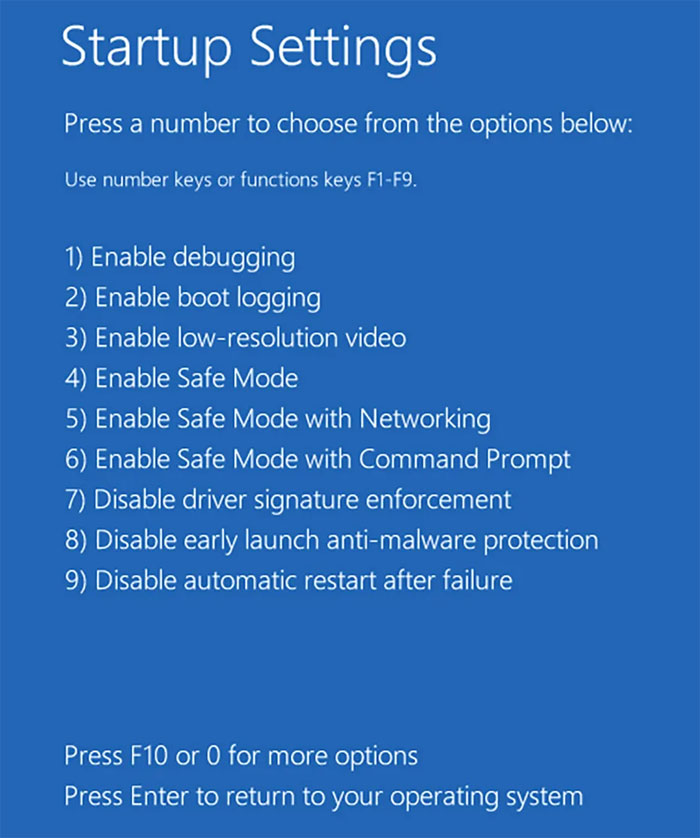
Once you successfully navigate to Startup Settings, you will see a screen filled with technical choices. Select these by pressing the corresponding number or Function (F) key on your keyboard. Here is exactly what each of those mysterious options actually does for your system.
1. Enable Debugging
This developer mode sends diagnostic data about the Windows kernel to another connected computer over a network or serial connection. Professional programmers use it for tracking deep kernel bugs. Home users rarely need this setting.
2. Enable Boot Logging
This option tells Windows to create a hidden text file named ntbtlog.txt that lists every single driver loading during startup. If your PC freezes halfway through booting, check this log later to see which file crashed. It pinpoints broken driver files quickly.
3. Enable Low-Resolution Video
This mode starts Windows using your normal graphics card driver but forces a low 640×480 screen resolution. It is a vital recovery tool if you set your monitor to an unsupported resolution resulting in a permanent black screen. You can reset your display settings safely here.
4. Enable Safe Mode
This is the standard bare essentials version of Windows. It disables non-critical apps, visual effects, and third-party drivers so you can isolate system crashes. Use this option when offline diagnostic work is required.
5. Enable Safe Mode with Networking
This mode loads standard Safe Mode plus the specific network drivers needed to access Ethernet or Wi-Fi. Use this option to download malware scanners or grab fresh graphics drivers directly from the web. It keeps network stacks fully active.
6. Enable Safe Mode with Command Prompt
This option drops you directly into a black Command Prompt window instead of loading the graphical desktop interface. It targets advanced troubleshooting scenarios where the Windows Shell or File Explorer is completely corrupt. You manage recovery through command lines.
7. Disable Driver Signature Enforcement
This setting bypasses Microsoft security checks that block unsigned drivers from running. Old legacy hardware often requires this override to function on modern operating systems. Use it with caution when installing specialized driver packages.
8. Disable Early Launch Anti-Malware Protection (ELAM)
This option prevents Windows early launch drivers from blocking suspected malware during boot. It acts as a last resort if your antivirus scanner blocks a critical system file and prevents Windows from starting normally. Use it to recover from antivirus software conflicts.
9. Disable Automatic Restart After Failure
This setting stops Windows from instantly rebooting when a Stop Error occurs. It freezes the Blue Screen message on your display so you can read the error code or take a photo with your phone. That error code helps pinpoint driver or hardware failures.
Pro Tip: Avoiding the Safe Mode Loop Trap
If you search the internet for Safe Mode tutorials, many older guides tell you to press Windows Key + R, type msconfig, and check the Safe boot box. Be careful with this legacy method.
If your computer uses a Microsoft Account password or a PIN that requires an active internet connection to verify, you can get permanently locked out of your computer. Windows will endlessly boot into Safe Mode without the network connection required to verify your credentials. Always use the Advanced Startup methods listed above to avoid this trap.
Safe Mode Frequently Asked Questions
Why does my screen look terrible in Safe Mode?
Your screen resolution will look chunky and your desktop background might turn completely black. The words Safe Mode will also appear in all four corners of your monitor screen.
This is completely normal behavior. Windows intentionally skips your high-definition graphics card drivers to keep the system stable during troubleshooting.
How do I get out of Safe Mode?
Panicking because you feel stuck in Safe Mode is common, but fixing it is simple. If you used Method 1, 2, or 3 from our guide, restart your computer normally.
Click the Start button, select Power, and click Restart. Windows will load into its normal mode on the next boot cycle.
Once you are safely in Safe Mode, you have the perfect environment to clean up your system.
For additional training resources, check out our online IT training courses.
Check out our extensive IT book series.