
Last Updated on April 10, 2026
If you backup your files to a location such as an external hard drive or network share then you may want to look into synchronizing your data rather than just copying and pasting the files over themselves each time you backup. Plus if you want to make sure that files you deleted on the source are deleted on the destination then synchronization is definitely something to think about.
Microsoft SyncToy was a popular, free application that simplified the process of copying, moving, and synchronizing files between different folders or drives. While Microsoft has officially discontinued the tool, it remains a favorite for users who want a simple, no-frills way to mirror their data without a subscription.
Most common operations can be performed with just a few clicks of the mouse, and additional customization is available without added complexity. SyncToy can manage multiple sets of folders at the same time; it can combine files from two folders in one case, and mimic renames and deletes in another. Unlike other applications, SyncToy actually keeps track of renames to files and will make sure those changes get carried over to the synchronized folder.
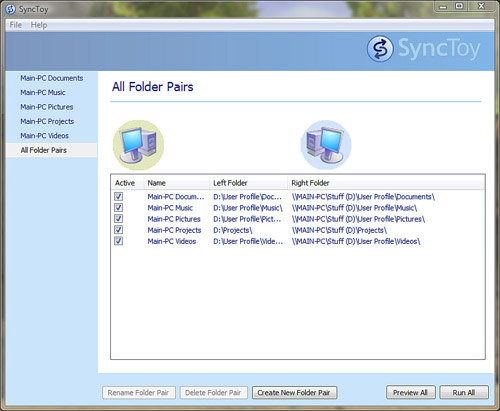
SyncToy offers the following options to synchronize your folders.
- Synchronize – New and updated files are copied both ways. Renames and deletes on either side are repeated on the other.
- Echo – New and updated files are copied left to right. Renames and deletes on the left are repeated on the right.
- Subscribe – Updated files on the right are copied to the left if the file name already exists on the left.
- Contribute – New and updated files are copied left to right. Renames on the left are repeated on the right. No deletions.
- Combine – New and updated files are copied both ways. Nothing happens to renamed and deleted files.
How to Enable .NET 3.5 for SyncToy
If you try to run SyncToy on a fresh install of Windows 11 and get an error, follow these steps:
- Open the Start Menu and type ‘Turn Windows features on or off.’
- Find .NET Framework 3.5 (includes .NET 2.0 and 3.0) at the top of the list.
- Check the box and click OK.
- Windows will download the necessary files. Once finished, SyncToy should open normally.
Although it is no longer officially supported, SyncToy 2.1 can still run on Windows 10 and Windows 11. However, because it is an older application, you must have .NET Framework 3.5 enabled on your system for it to launch. Since Microsoft no longer hosts the direct download, you will need to find it on a reputable third-party mirror like MajorGeeks.
Modern Alternatives to SyncToy
If you find that SyncToy is too dated for your needs, or if you want a tool that is actively maintained, consider these alternatives:
- FreeFileSync: A powerful, open-source tool that does everything SyncToy does but much faster and with a modern interface.
- Microsoft OneDrive: For those who want automatic cloud synchronization built directly into Windows.
- Robocopy: A robust command-line tool built into Windows for advanced users who want to script their own synchronization tasks.
For additional training resources, check out our online IT training courses.
Check out our extensive IT book series.






