
Last Updated on April 8, 2026
PDF (Portable Document Format) files have been around for many years and are commonly used for emailing documents because of their compact size and the ability to secure them from being altered. The PDF format was created by Adobe back in the early 1990s and is still widely used today. In fact, PDFs are almost as common as Word documents these days and if you have been using a computer for any amount of time you have most likely opened one.
Now there may be a time when you would like to remove pages from or add pages from another PDF file to a particular PDF file. Or maybe you want to rearrange the page order in your PDF file to make a custom PDF file. While these features are missing from the free Adobe Acrobat Reader, most users assume they must pay for a costly monthly Creative Cloud subscription to gain basic editing capabilities. PDFsam offers a powerful, open-source alternative that handles these core tasks without the recurring subscription fees. Now there is a free program that will allow you to remove pages from a PDF document as well as merge pages from a different document and that software is called PDFsam.
PDFsam is currently offered in three main versions: Basic, Visual, and Enhanced. The Basic version remains free and open-source, perfect for standard merging and splitting. The Visual version provides a more intuitive drag-and-drop interface for complex reordering, while the Enhanced version adds professional features like OCR and electronic signatures.y. The basic version allows you to do the following:
- Split documents into separate pages or chapters
- Reorder document pages
- Merge various documents together
- Extract sections of a PDF and place them in another file(s)
- Rotate page orientations
- Save and load your workspace to automate your recurrent jobs
Once you download and install PDFsam you will see it’s easy to use interface. You can simply drag the PDF files you want to alter into the main window to begin working on them.
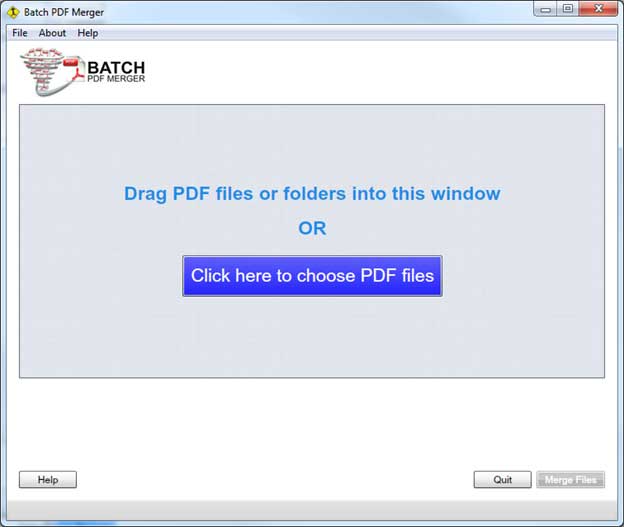
From here you will have the option to merge all the files in your list into one document by clicking the Merge Files button.
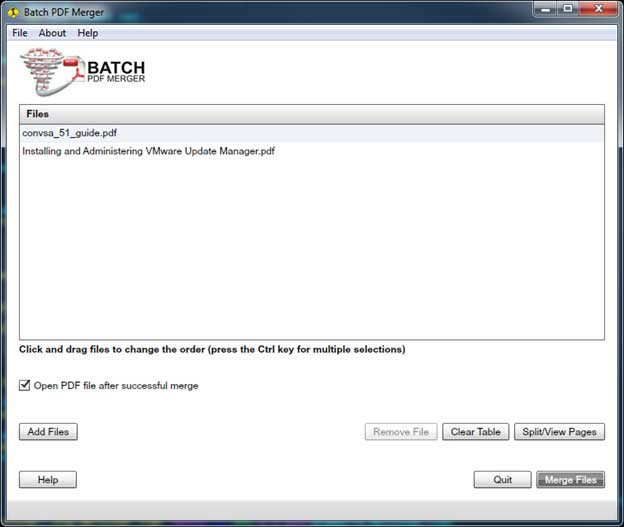
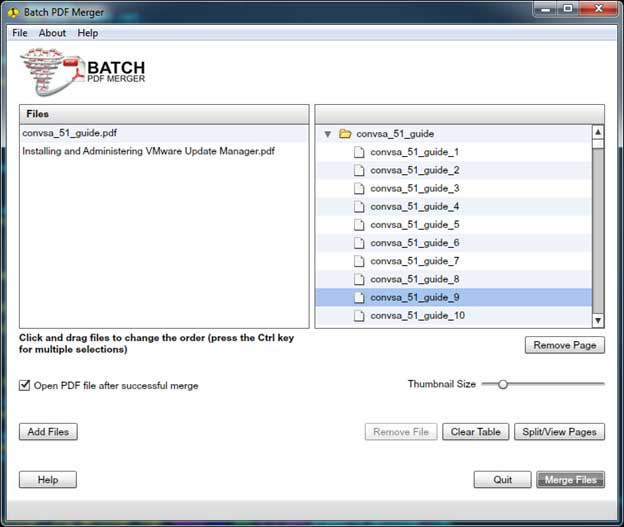
Clicking on Split/View Pages will expand the pages within the PDF files you loaded into PDFsam allowing you to drag and drop pages from one PDF to another or reorder them within the same PDF file. You can also highlight pages and click the Remove Page button to delete that page from the PDF file.
You can hover over a particular page and it will show a preview/thumbnail of what that page looks like. Adjusting the Thumbnail Size slider will let you adjust how large the thumbnail previews are. Clicking on Remove File will remove the highlighted file from your list and clicking on Clear Table will clear all the files from the list.
One of the primary reasons to use PDFsam over free online ‘PDF Merge’ websites is security. When you use an online tool, you are uploading your sensitive documents to a third-party server. PDFsam performs all processing locally on your computer, ensuring your data never leaves your machine. This is a critical security step for handling financial records or legal documents
PDFsam can be downloaded for free off of their website.
For additional training resources, check out our online IT training courses.
Check out our extensive IT book series.






