
Last Updated on April 9, 2026
Shadow Copies are a built in feature of newer Microsoft Windows desktop operating systems as well as Windows Server operating systems. If enabled Windows will take snapshots of files and/or volumes and keep them for a certain amount of time allowing you to go back and recover older versions of your files. Many companies will enable this feature on their file servers so that if a file gets deleted it’s easy for an administrator or even an end user to go back and recover a copy of that file. The copies can be scheduled to run at various times of the day and can be accessed by a Previous Version tab on the properties of the files or folders. Keep in mind that this is not a replacement for an appropriate backup system.
For the home user you have the same option to restore these copies of your files because Shadow Copies are enabled by default in Windows Vista and up. In Windows 11, Microsoft has made it increasingly difficult to access local shadow copies through the standard ‘Previous Versions’ tab—even on Pro and Enterprise editions. For many users, that tab simply appears empty. ShadowExplorer bridges this gap for everyone, providing a direct interface to the Volume Shadow Copy Service (VSS) snapshots that Windows is already creating in the background.

Shadow Explorer provides an interface to these backed up files allowing you to recover files if you accidentally delete some or if you make a change to a document, save it and then realize you didn’t want to save the changes and want to roll back to a previous version. It will allow you to choose a specific date when a backup copy took place and then access those files from that day.
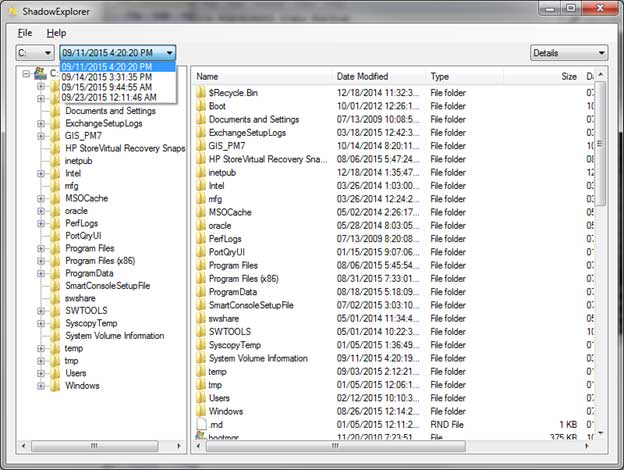
To use Shadow Explorer simply select the dropdown item to choose the date and time you want to go back to and it will show the available files and folders from that date. Once you find the file or folder you would like to restore simply right click on it and chose Export.
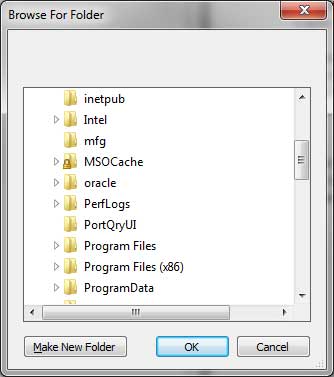
Then you will choose what location on your computer you would like to restore the file to.
Then it will show a status bar for the export and when the process is complete you will have your restored files or folders ready for use.
Crucially, modern Windows 11 installations often have System Protection turned OFF by default to preserve SSD lifespan. To use ShadowExplorer effectively, you must first ensure that System Protection is active. You can check this by searching for ‘Create a restore point’ in the Start menu and ensuring your system drive is set to ‘On.’ Once enabled, Windows will begin taking the periodic snapshots that ShadowExplorer needs to recover your deleted or modified files.. You can actually enable this feature from Shadow Explorer itself by going to the File menu and choosing Configure System Protection and then turn it on for your other drive(s). If you have the higher end version of Windows then all you need to do is go to the file or folder in question and right click it and choose the Previous Versions tab.
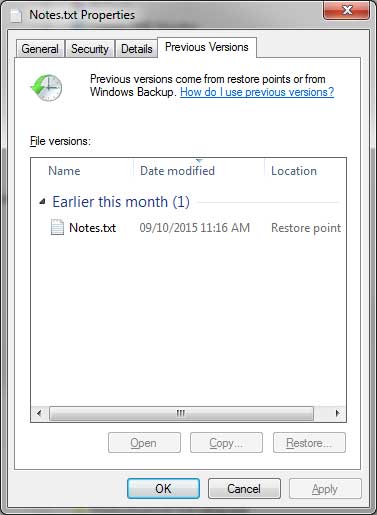
But if you don’t have the file anymore to click you won’t be able to do that and Shadow Explorer might better help you out in that case. We also noticed that Shadow Explorer showed additional copies that the Previous Version tab didn’t show so maybe it’s best to use both.
While not a replacement for a true off-site backup, shadow copies can sometimes be a lifesaver during a malware or ransomware attack. If a file is encrypted by ransomware, ShadowExplorer can often ‘look behind’ the encryption to an earlier snapshot from a few days prior. However, note that modern ransomware often tries to delete shadow copies immediately; if you suspect an infection, run ShadowExplorer from a WinPE recovery environment or immediately after disconnecting from the network to see if your snapshots are still intact.
Since most modern PCs use NVMe SSDs, the ‘export’ process in ShadowExplorer is now nearly instantaneous compared to the mechanical drives of the past. Just ensure you export the files to a different folder or an external drive to avoid overwriting the very data you are trying to save.
Shadow Explorer can be downloaded free from their website.






